 ExcelPOIOutput - Output to Excel data (POI version)
Update the Excel file and output it to the stream. When you execute the Flow in this component, the below things can be done.
- Update the value and the format information at the specified position in a document.
- Create, update and delete records in the multiple specified areas in a document (including the format information)
Before using the component, you should start up the Excel Builder first, read an Excel file as a template next, then make a connection between the cell in the workbook and the field definition of the component.
For details, please refer to following topic "How to use ExcelBuilder".
Stream Information
| Input | Format | Record |
|---|---|---|
| Number of Inputs | 1 | |
| Description |
The record will be written into the Excel file. Write into the record area defined by the Excel Builder. You can specify the detailed way of accessing by Mode. When multiple record areas have been defined, the number of the displayed input stream is as same as the number of the areas, and the record name will be each stream's name. The field name can be defined in the Excel Builder, but can't be modified in the Flow Designer. If not all the records can be written into the record area, an error will occur. |
|
| Output | Format | Binary |
Component Properties
| Name | Data Type | Mapping | Description | ||||||
|---|---|---|---|---|---|---|---|---|---|
| FilePath | remoteFile | In & Out |
Specify the path of the Excel file to write into. If the file doesn't exist, you can create an empty worksheet, then write data into it. The created file format will be xls or xlsx according to the extension. If the format isn't specified in the filepath, it will be xlsx. The updated file will be output to the stream as a binary image. If the UpdateFile is specified as "false", the file itself won't be updated. If it's a relative path, it's decided by the specified HomeDirectory. |
||||||
| HomeDirectory | pathResolver | - |
If you want to specify a relative path in the FilePath, you should specify a base directory previously.
|
||||||
| Mode | choice | In & Out |
Specify how to output to the record area defined by the Excel Builder in the worksheet. Please pay attention that it isn't the method about how to write into the workbook file or the worksheet. The field which is used to specify the record as a key is set in the Excel Builder. When you have specified the String type to the field which is a key, if in the corresponding cell there is a number, after converting it to the string which is applied to the cell format, namely, the string displayed in the Excel, you can compare with it. In this case, it's possible that there will be a comma or a currency mark etc. included in the string. If you compare the key as a number, please select one after matching the Number type like the Integer type or the Double type to the cell. If not all the records can be written into the record area, an error will occur. When output by using Append, Insert, if there isn't any blank row in the record area, an error will occur, too. The record area can't be extended automatically. If the defined record area is very large, using Override is more quikly and more effective than Override(Clear). If a value is inserted into a loop from a mapper, it will be valid only for the first time.
|
||||||
| UpdateFile | boolean | In & Out |
Specify whether to update the Excel file specified in the FilePath or not.
|
||||||
| ConvertNull | choice | In & Out |
When you write a number into a cell of the sheet, if the number is Null, you should specify a value to write.
|
||||||
| Sheet | category | In & Out |
When you define a single cell or record by the Excel Builder, the sheet name will be listed in the "DefinedSheetName". To assign a value to the "OutputSheetName" corrresponding with each sheet, you can replace it with the listed sheet name, then the data will be output to the cell of the sheet name. If the specified sheet doesn't exist in the workbook, a new sheet will be created. If "CreateMode" is "New", an empty worksheet will be created. If it's "Copy", "DefinedSheetName" will be copied to the new sheet. “OutputSheetName” can be modified by the mapper, so you can select a sheet in the Flow dynamically to output. |
||||||
| Cell | category | In & Out |
The single cell area in the Excel file is defined by the Excel Builder. When the Flow is running, the property value will be written into the corresponding cell. The field name can be defined in the Excel Builder, but can't be modified in the Flow Designer. |
Transaction
| Commit | Do nothing |
|---|---|
| Rollback | Do nothing |
Exceptions
| Type | Parameter | Stream for error handling flow | Error Code | Description | ||||||
|---|---|---|---|---|---|---|---|---|---|---|
| Exception |
| This component's input stream | - | When the record area can't be fully written into. | ||||||
| - | When the data can't be written into the file specified in the FilePath. | |||||||||
| - | When the HomeDirectory is "Executing user home folder", but the execution user doesn't exist, so it can't be resolved by using the relative path. | |||||||||
| - | When you want to open the Excel file whose format isn't supported in our application. You need to save the Excel file which is below Excel95 again by using the Excel95 or above. |
Restrictions
About the readable file, data
The readable files are decided by the POI Library you are using.
Support the Excel file whose format is above Excel97 and the xlsx file added from Excel2007.
If a field of the String type is output to the existed number cell, the cell will be a string cell. If a formula is included in this cell, please pay attention that the result will be incorrect possibly.
If the formula is output, the function existed in Japanese and the functions of JIS, ASC, DOLLAR won't be supported.
If you copy a worksheet by using the Sheet tab, the VBA macros of the original worksheet won't be copied.
Checking whether the data up to 20MB can be written into a file or not.
In an Excel format, there are 10 byte - 20 byte additional information in a cell, so compared with the quantity of the data to be written, the number of the cells is decreasing.
Value type Estimated number of cells. Number 1200000 cells. String 800000 cells (when there are 4 bytes, 2 double-byte characters or so) 200000 cells (when there are 80 bytes, 40 double-byte characters or so) 2400 cells (when there are 8K bytes, 4056 double-byte characters or so)
Merged Cell
If you want to update the value or format information of merged cell, please specify the address of left-top cell of the area.
For example, for cell definition, the area is C3:D5, specifies C3.
For the record definition, if the record area has only one row, specifies the left cell. If the record area has multiple rows, specify the left-top cell.
Writing the Excel workbook
This component create the file image of Excel workbook and pass the image as a Binary stream to next component. As follows, the behavior is decieded by the related properties.
- UpdateFile is "true" and workbook specified by FilePath is existing
- UpdateFile is "true" and workbook specified by FilePath is not found
- UpdateFile is "false" and workbook specified by FilePath is existing
- UpdateFile is "false" and workbook specified by FilePath is not found
Reads the workbook specified by FilePath, updates that binary image, then passes to next component. At the same time, the workbook file is updated.
Creates the new workbook image on memory, updates that image, then passes to next component. At the same time, the workbook file is newly stored.
Reads the workbook specified by FilePath, updates that binary image, then passes to next component. The workbook file is not updated.
Creates the new workbook image on memory, updates that image, then passes to next component. The workbook file is not created.
Color Name
The color name character string used to input and output from format information on the Excel file by this component is as follows.
This is the one based on the standard color palette of Excel. The palette of the user definition is not supported.
When writing, the name is case-sensitive. When reading, the name is acquired as a small letter.
| Name | Sample | RGB value |
|---|---|---|
| aqua | 33cccc |
|
| black | 000000 |
|
| blue | 0000ff |
|
| blue gray | 666699 |
|
| bright green | 00ff00 |
|
| brown | 993300 |
|
| coral | ff8080 |
|
| dark blue | 000080 |
|
| dark green | 003300 |
|
| dark purple | 660066 |
|
| dark red | 800000 |
|
| dark teal | 003366 |
|
| dark yellow | 808000 |
|
| gold | ffcc00 |
|
| gray 25% | c0c0c0 |
|
| gray 40% | 969696 |
|
| gray 50% | 808080 |
|
| gray 80% | 333333 |
|
| green | 008000 |
|
| ice blue | ccccff |
|
| indigo | 333399 |
|
| ivory | ffffcc |
|
| lavender | cc99ff |
|
| light blue | 3366ff |
|
| light green | ccffcc |
|
| light orange | ff9900 |
|
| light turquoise | ccffff |
|
| light yellow | ffff99 |
|
| lime | 99cc00 |
|
| ocean blue | 0066cc |
|
| olive green | 333300 |
|
| orange | ff6600 |
|
| pale blue | 99ccff |
|
| periwinkle | 9999ff |
|
| pink | ff00ff |
|
| plum | 993366 |
|
| red | ff0000 |
|
| rose | ff99cc |
|
| sea green | 339966 |
|
| sky blue | 00ccff |
|
| tan | ffcc99 |
|
| teal | 008080 |
|
| teal | 008080 |
|
| turquoise | 00ffff |
|
| violet | 800080 |
|
| white | ffffff |
|
| yellow | ffff00 |
How to use ExcelBuilder
Development of flows that uses Excel
The following procedures are used to make flow to which the Excel file is generated by using the ExcelPOIOutput component.
In the ExcelPOIOutput component, the data of the cell that responds read Excel template is updated and the data of the record area is updated by the stream pane of the component in "Cell" tab of the component property. These data can be dynamically treated by arranging the Mapper component just before the ExcelPOIOutput component.
- Puts the ExcelPOIOutput component in the flow, and passes the Record or XML data as an input stream.
- Launches the ExcelBuilder from ExcelPOIOutput component. In the ExcelBuilder, specifies cells or record area of the template Excel files.
- Selects the data type of the properties in the Cell tab.
- Selects the data type of the fields in the stream pane.
- Specifies the file path to be created or updated.
- Selects how to update the record values by ExcelPOIOutput property.
Launching ExcelBuilder
ExcelBuilder is an add-on software running in the Excel 2000 to Excel 2007. One of these versions of Microsoft Excel has to installed. ExcelBuilder is run as a macro, security level of macro must be lower than Medium in the Excel.
In order to launch ExcelBuilder is:
- Click the "ExcelBuilder" from right click menu of ExcelPOIOutput. Or, double-click the ExcelPOIOutput component.
- Microsoft Excel starts. You can find the add-on icon of "ExcelBuilder" in the toolbar.
- Open the template Excel file for handling the data.
- Click the icon of "ExcelBuilder", then ExcelBuilder dialog is displayed.
Cell Definition
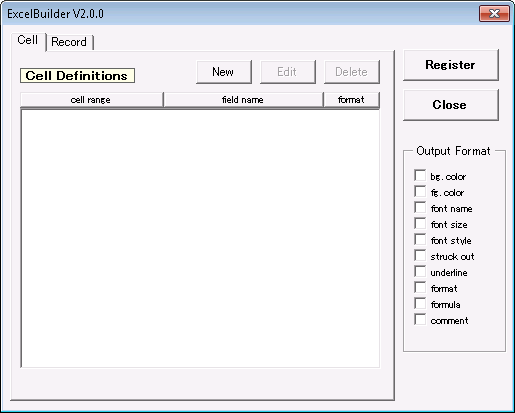
In the Cell tab, you can define the cell to write the data. These data is set to the properties defined in the Cell tab.
New
Adds the cell definition. When clicking the "New" button, the dialog for specifying the cell is displayed. Click the cell in the worksheet or input the reference of the cell. Then click "OK".
Next, the dialog for specifying the cell name is displayed. Input the cell name and click "OK" This name is used for property name of Cell property. Repeat these operations for the number of the cell you want to get the value from. Added cell definitions are displayed in Cell tab as a list.
Edit
Changes the cell definition. When clicking the "Edit" button, the dialog for specifying the cell is displayed. If you want to change it, input a new value. Click "OK" if you don't want to change.
Next, the dialog for specifying the cell name is displayed. Input a new value if you want to change, and click "OK". If you click "Cancel" during these operations, cell definition is not changed.
Delete
Delets the cell definition. Select the cell definition. Then click "Delete" button, the definition is deleted.
Format information
You can specify which format information you can write to the outputs. Select the cell definition, and turn on the checkbox to want to write to "Output Format".
Checked information is able to be written by Cell property by the field name as following format.
  Background color     : [Cell Name]_Background
  Color                : [Cell Name]_FontColor
  Font                 : [Cell Name]_FontName
  Size                 : [Cell Name]_FontSize
  Style                : [Cell Name]_FontStyle
  Strikethrough        : [Cell Name]_StruckOut
  Underline            : [Cell Name]_UnderlineStyle
  Format               : [Cell Name]_Format        (*No support)
  Formula              : [Cell Name]_Formula
  Comment              : [Cell Name]_Comment
Record Definition
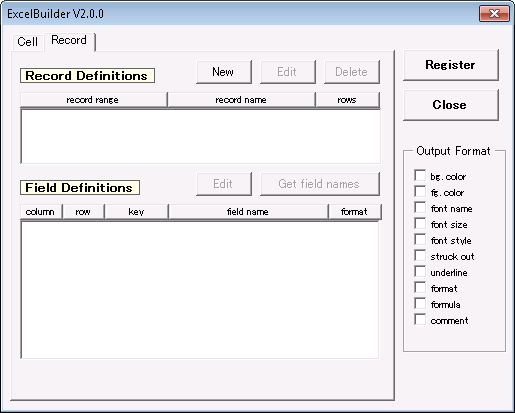
In the Record tab, you can define the cell area to write the data by records. The values set to the properties defined in the Record tab are written.
Multiple record definitions can be defined. When multiple record definitions are defined, the input connector as for the number of record definitions are created. Field definitions are also added in the stream pane.
Record definition with multiple rows in each record can be defined. In that case, please set for the number of lines of the entire record area to become integral multiples of the number of lines a record.
New
Adds the record definition. When clicking the "New" button, the dialog for specifying the area is displayed. Select the cell area in the worksheet or input the reference of the area. Then click "OK".
Next, the dialog for specifying the record name is displayed. Input the record name and click "OK".
Next, the dialog for specifying the rumber of rows is displayed. Input the number of rows, then click "OK". The record definition is added.
Edit
Changes the record definition. When clicking the "Edit" button, the dialog for specifying the area is displayed. If you want to change it, input a new value. Click "OK" if you don't want to change.
Next, the dialog for specifying the record name is displayed. Input a new value if you want to change, and click "OK". If you click "Cancel" during these operations, record definition is not changed.
Next, the dialog for specifying the rumber of rows is displayed. Input a new value if you want to change, and click "OK".
Delete
Delets the record definition. Select the record definition. Then click "Delete" button, the definition is deleted.
Field Definitions
Defines a field name in a record. When selects record definition, "column" and "row" are displayed in the Field Defintions. "row" is only displayed when the number of rows in the record is more than 1. The field names are used for field name of the output stream. By default, the field name is combionation of "column" and "row".
Edit
When you changes the field name, clickthe "Edit" button. The dialog for specifying the field name is displayed. Input a new value, then click "OK". If you click "Cancel", the field name is not changed.
Next, the dialog with the message "Use this fields as a key?". If you want to use this field as a key when the value of Mode is Append, Insert, Update or Delete, click "Yes".
Get field names
Gets the field names from worksheet. When clicking "Get field names" button, the dialog for specifying the area is displayed. Specify the area which includes the field names. The area have to have same number of columns and rows of each record. By default, the upper area of record area is selected.
If there are empty cells in selected area, the field name is not changed. The line feed is removed from the string.
Format information
You can specify which format information you can write to the outputs. Select the field, and turn on the checkbox to want to update the information of "Output Format".
Checked information is able to be updated by the field of input stream by the field name as following format.
  Background color     : [Field Name]_Background
  Color                : [Field Name]_FontColor
  Font                 : [Field Name]_FontName
  Size                 : [Field Name]_FontSize
  Style                : [Field Name]_FontStyle
  Strikethrough        : [Field Name]_StruckOut
  Underline            : [Field Name]_UnderlineStyle
  Format               : [Field Name]_Format        (*No support)
  Formula              : [Field Name]_Formula
  Comment              : [Field Name]_Comment
Format Information
When you check the format information to be updated in the cell definition or field definition in the record definition, the values you can get are as follows.
- Background color - Color name
- Color - Color name
- Font - Font name
- Size - Integer value of points
- Style - Normal:0, Bold:1, Italic:2, Bold+Italic:3
- Strikethrough - Yes:True、No:False
- Underline - No:0, Single:1, Double:2, Single Accounting:33, Double Accounting:34
- Format - Pattern string
- Formula - Formula. "=" is removed.
- Comment - Comments (When the value is NULL or empty string, the comment is removed)
Exits ExcelBuilder
When finishes the configuration, click the "register" button to register the infromation. Then, exist the ExcelBuilder.
Register
Registers the configurations. When clicking "Register"button, the information are stored and the ExcelBuilder exits.
Close
Exits ExcelBuilder. When clicking "Close", the information are not stored and the ExcelBuilder exits. After the ExcelBuilder exits and exits the Excel, returns to Flow Designer.
Inspector of Excel components
After cell and record definitions are defined by ExcelBuilder, the information are set to Sheet tab, Cell tab, and stream pane of inspector window of Excel component. These values are able to be changed by Mapper component in runtime.