 XPathString - Get Value With XPath
The XPathString component gets a node's value from the input XML stream as specified by the XPath.
Stream Information
| Input | Format | XML |
|---|---|---|
| Number of Inputs | 1 | |
| Output | Format | XML |
| Description |
The input stream is copied to the output stream. |
Component Properties
| Name | Data Type | Mapping | Description |
|---|---|---|---|
| XPath | category | In |
The XPath statement. XPath can specify XPath generated automatically by the selection from the tree of XML by the use of the XPath Expression editor for the property. For details, refer the topic XPath Expression Editor below. Also, XPath is set as a stream variable automatically. The XPath can used by next mapper component as a stream variable. For details of stream variable, refer the help of Stream Variables in Flow Service manual.
|
Loop
This component cannot be the starting point for a loop.
Transaction
| Commit | Do nothing |
|---|---|
| Rollback | Do nothing |
Exceptions
| Type | Parameter | Stream for error handling flow | Error Code | Description |
|---|---|---|---|---|
| Exception | None | This component's input stream | - | The XPath is invalid. |
| - | Can not convert the retrieved data to the selected output field's data type. |
How to use Variables
Flow variables and system variables can be referenced in the XPath statement.
External variable set can not be used.
| Flow Variables | $flow.variableName |
|---|---|
| System Variables | $system.variableName |
XPath Expression Editor
XPath Expression Editor is for helping when you input the Xpath expression. Select the node from the tree, then the XPath of that node will be set to the property.
Click "..." in the right of the field that specifies XPath, then it starts.
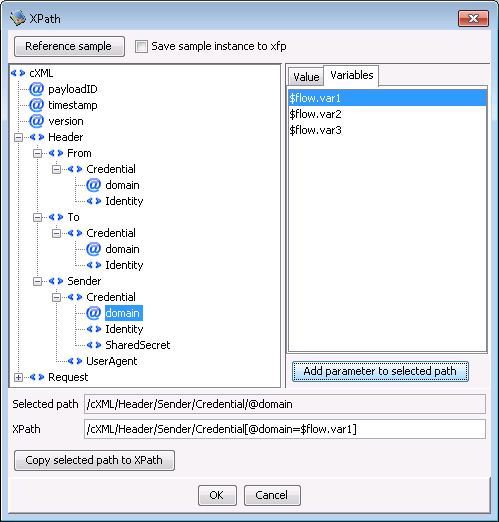
Tree
The field definition of the target stream for XPath is displayed in the tree. For instance, the target input stream in the XPathNodeset component for XPath and the field definition is displayed. When the link is not connected with the input side of the component, nothing is displayed in the input stream in the initial state when the field definition is not done.
Reference sample button
Arbitrary XML is read, and the structure can be displayed in the tree. Moreover, the value of the node selected with the tree (attribute value or element content) is displayed in the value tab, and it can be used to specify the conditional expression.
- If clicking the "Reference sample" button, "Open" dialog box is displayed. Then, select XML to be read.
- The structure of XML is analyzed and it is displayed in the tree.
"Save sample instance to xfp" checkbox
Read XML is preserved in the xfp file (project file) when "The sample is preserved in xfp" check box is turned on when XML is read from the "Reference sample", and that XML can be referred to when the xfp file will be opened next time. As for read XML, when the check box is off, the editor is not preserved. To use it next time, it reads from "Reference sample" button again.
Notice:Sample XML is not information necessary for the execution of the component. Please preserve only the stage of development and the test so that the size of the file of the xfp file (project file) may grow when big XML of the size of the file is preserved, and the time that hangs to preservation and the compilation may increase, too.
Set XPath
When the node is selected with the tree, the XPath is displayed in "Selected path" field. When the button of "Copy selected path to XPath" is clicked, the path is copied onto the "XPath" field. "XPath" field can be edited. If you want to specify complex XPath, you can edit the value directly there.
Set variables to conditional expression
The variable that can be used by the component like the flow variable and the local variable, etc. is listed in the variable tab.
When path selected with the tree composes a part of XPath, the comparison with the variable can be added to XPath with "Add parameter to selected path" button.
Example
| XPath | /School/Class/Student |
|---|---|
| Selected path | /School/Class/@name |
| Variable | $flow.var1 |
| XPath after adding the variable | /School/Class[@name=$flow.var1]/Student |
Because the selected path "/School/Class/@name" is ancestor of "/School/Class/Student", it can be used as conditional expression. If the selected path is not related the XPath like "/School/Class/Teacher/@name", the button is disabled.
Set the value to conditional expression
When sample XML is used, the value actually set to the selected path is listed in the value tab. When the selected path with the tree composes a part of XPath, the comparison with the value can be added to XPath with "Add parameter to selected path" button.
Example
| XPath | /School/Class/Student |
|---|---|
| Selected path | /School/Class/@name |
| Value | Class A |
| XPath after adding the condition | /School/Class[@name="Class A"]/Student |
The rule that can add the condition is the same as the case of the variable.