From Service
Start from Windows service
Open"Management tool"-"Service"from the control panel of Windows.
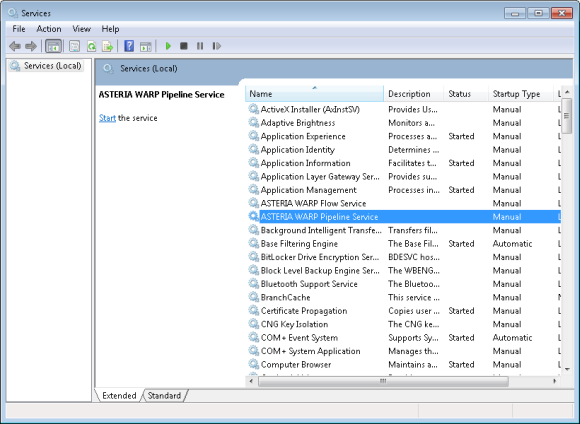
Confirm there is an entry of"ASTERIA WARP Pipeline Service"and double-click it.
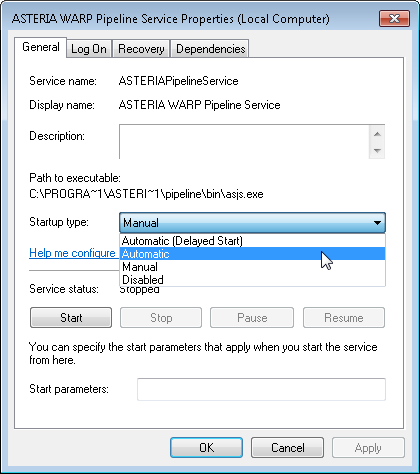
Here, if select"Automatic"in "Start-up Type", the pipeline service is automatically started when Windows is started. Share files where access authority is setted for access, please set an account as follows if Windows account confirmation is necessary.

When the setting is completed, click"OK"button then click"Begin" button.

It is displayed as above figures when start is begun. You can use [INSTALL_DIR]/pipeline/log/pipeline-console.log file and[INSTALL_DIR]/pipeline/log/pipeline.log file to confirm whether start has completed.
If start from Windows service,because of using [INSTALL_DIR]/pipeline/bin/asjs.conf as environment variable of pipeline service, it is necessary to edit if you want to add execution path.
Comparing with start and stop from start menu, pipeline service can be automatically started after starting Windows, so we recommend you to use this method usually.
Stop from Windows service
Please select"Stop"button when stop pipeline.