 AWS RedshiftCopyTable - Copy tables of AWS Redshift into another Redshift
Create a new table in Amazon Web Services Redshift and copy data from an existing table。
Stream Information
| Input | Format | All |
|---|---|---|
| Number of Inputs | 1 | |
| Description |
The input stream is not used. Stream formats are not selectable. |
|
| Output | Format | All |
| Description |
The input stream is copied to the output stream. |
Component Properties
| Name | Data Type | Mapping | Description | ||||||
|---|---|---|---|---|---|---|---|---|---|
| RDB Connection Name | connection | - | Specify an RDB connection to connect to Redshift. Select the name of a connection created in the connection pane or the Management Console. | ||||||
| Table Name | string | In & Out | Specify the name of the new Redshift table. | ||||||
| Data Distribution Style | choice | In & Out |
Specify the distribution style. To learn about data distribution, you can refer to "Distribution Styles" for help. |
||||||
| Distribution Key | string | In & Out | Specify the data distribution key. | ||||||
| Sort Key | string | In & Out | Specify the sort key. | ||||||
| Create as temporary table | boolean | - |
Specify whether to create the new table as a temporary table.
|
||||||
| Delete existing same name table | boolean | - |
Specify whether to delete the existing table which has the same table name as is specified by Table Name
Enable this property when Create as temporary table is 「false」. Ignore this property when Create as temporary table is 「true」.
|
||||||
| Throw error when existing same name table | boolean | - |
Whether to throw an error or not when there is a table with the same name as specified by Table Name. Only works when Delete existing same name table is「false」.
|
||||||
| SQL | string | In & Out |
Specify the SQL of getting the data to copy the table. It can be generated automatically by SQL builder, or edited by yourself. Please refer to "Using SQL builder" for help. It can also made by mapping the SQL string from a mapper without using SQL builder. |
||||||
| Use SQL Parameterss | boolean | - |
When using $,? in SQL, set this property to false to run the component without transforming SQL parameters. It should be noticed that all parameters will be ignored in this case.
|
||||||
| SQL Parameter | category | In & Out |
The value of SQL Parameter can be used as parameter or replacement text by writing certain format in SQL. SQL Parameter is defined by SQL builder. Please refer to "Using SQL builder" for help. |
Transaction
| Commit | Commit. |
|---|---|
| Rollback | Rollback. |
Exceptions
| Type | Parameter | Stream for error handling flow | Error Code | Description |
|---|---|---|---|---|
| General | None | This component's input stream | 1 | Failed to excute the SQL. |
| 2 | Failed to get SQL parameters. | |||
| 3 | Other exceptions. | |||
| Connection Error | None | This component's input stream | 301 | Connection error. Failed to connect to RDB. |
| A table with the same name exists | None | This component's input stream | 4 | When Throw error when existing same name table is「false」and worked. |
Property Setting Page
Double click the component or select "Property Setting" from the right click menu to open this page using specified connection information of the component.
The settings of properties and catogories can be changed here.
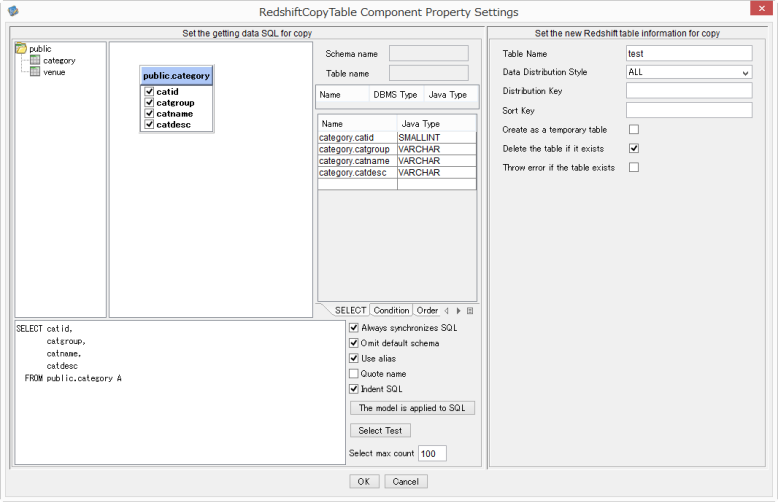
「SQL builder」
Please refer to "Using SQL builder" for help.
Table Name
Specify the table name.
Data Distribution Style
Specify the distribution style.
Distribution Key
Specify the distribution key.
Sort Key
Specify the sort key.
Create as temporary table
Check this to create new tables as temporary tables.
If not checked, new tables will be created as permanent tables.
Delete existing same name table
Check this to delete the existing tables in Redshift.
If not checked, existing tables will not be deleted.
Throw error when existing same name table
Check this to throw an error when there is existing tables.
If not checked, no error will be thrown.
"OK" button
Set the information displayed in this dialog to properties or categories of this component.
"Cancel" button
Close this dialog.
Properties of this component will not be changed.