Processing Errors
You can execute an error-processing flow or other error-processing operation to handle errors that result when a component's data-processing operations fail. Set a component's Exception property or set the flow's Generic Exception property to specify a default for all components in the flow.
See below for the basic tasks to create error-processing flows and see how to handle errors in more advanced flows.
- Using Flows to Handle Errors
- Configuring Error Processing
- Processing Component-Specific Errors
- Creating and Designing Error-Processing Flows
Using Flows to Handle Errors
If you don't specify an error-processing flow, a flow terminates with an error status when a component throws an error. Alternatively, you can use error-processing operations to end a flow normally or continue the flow, outputting a stream to the next component. You can also get information about the error from an error-processing operation's output.
Configuring Error Processing
See below for general procedures to select one of the available error-processing operations or to select an error-processing flow.
Set a component's Exception property to handle general errors. In the Exception Properties section, some components define other properties you can define to handle specific errors, like "file not found" or "record not found." See the next section to handle these errors.
Specifying Default Operations
You can specify default error-processing operations for individual components or for all components in the flow.
- Set the component's Exception property to specify an error-processing flow or operation to execute when the component throws an error.
- If you don't set any of the compnent's properties in the Exception Properties section, the flow's Generic Exception property specifies a default error-processing flow or operation.
- If you don't set any of the compnent's properties in the Exception Properties section, and you don't set the flow's Generic Exception property, the flow terminates abnormally if the component throws an error.
Setting a Component's Exception Property
- Select the component in the workspace.
- In the inspector on the right side, click the box next to the Exception property.
- Double-click a project and select the flow, or select None, Ignore, End Request, or End Flow. See below for more details.

After you select an error-processing flow or operation, the component displays the error processing icon  . Click the icon to jump to the error processing flow that you configured for the Exception property.
Configuring the Flow's Default Error-Processing Operation
- Click the flow icon
 in the tree pane.
 - In the inspector on the right side, click the box next to the Generic Exception property.
- Select an error-processing operation or select a flow from the project list.
Selecting a Error-Processing Operation
See below for the error-processing operations and the operation's output stream.
| Select | Description |
|---|---|
| (none) | Select this to end the flow in an error state. This is the default if you don't select anything. |
| Ignore |
Select this to ignore the error. The flow continues to the next component. The Flow Service selects the output stream, which replaces the stream that the component would normally output. The Flow Service selects the first available stream from the following:
|
| End Request | End the running flow immediately and all other flows in the request. This operation ends all subflows and parent flows. The request's output stream is the error component's input stream. |
| End Flow | End the running flow immediately. If the flow where an error occurs is a subflow, the flow goes back to the parent. The SubFlow component outputs its input stream. If the flow doesn't invoke a subflow, the flow doesn't output a stream. |
| Call Error Processing Flow | Select a flow to process the error. |
- See Also
- Configuring Transactions: : You can also execute an error-processing flow in the same transaction as the parent flow or a different one: see Configuring Error-Processing Flow Transactions in the "More Topics" section for Transactions.
Processing Component-Specific Errors
Some components provide additional functionality that allows you to handle specific errors separately from other errors, such as connection errors; for example, the FileGet component's "file not found" error or the RDBGet component's "record not found" error.
Example: Handling the POP3 Mail-Not-Found Exception
You can set the POP3 component's MailNotFoundException property to handle the case when there isn't any mail in the mailbox on the server, separately from other errors such as errors connecting to the POP3 server.
Setting the MailNotFoundException Property
- Select the component in the workspace.
- In the inspector on the right side, click the box next to the MailNotFoundException property.
- In the Select Flow dialog that's displayed, double-click a project and select an error-processing flow or operation: Ignore, End Request, or End Flow.
Jump to the Error-Processing Flow
In the workspace, click the icon to jump to the flow that you configured for the MailNotFoundException property.
Processing Specific Errors Separately
If you don't set the MailNotFoundException property, the POP3 component uses the default error-processing operations to process this type of error: the component's Exception property or else the flow's Generic Exception property.
Creating and Designing Error-Processing Flows
See below to pass inputs to error-processing flows and configure the next step in the flow after an error-processing flow ends.
Passing Inputs to Error-Processing Flows
You can get inputs from streams, flow parameters, system variables, and execution data, like session data.
Passing in a Stream
The type of error determines the input stream to the error-processing flow. See the Component reference to find the types of errors that a particular component returns.
Passing in Flow Parameters
Flow parameters provide a way for the error flow to inject values into the error-processing flow. You can set an error-processing flow's public flow variables from the error flow.
To define the error-processing flow's flow parameters, define public flow variables on the Variables tab in the error-processing flow.
To pass in values from the error flow, define public flow variables with the same name in the error flow. You can set default values or set values in the Mapper. The Flow Service copies the value you set to the public flow variable in the error-processing flow.
Getting Error Details with System Variables
You can reference the system variables in the Mapper's input fields to get details about the error in the error-processing flow.
To enable access to the system variables in the Mapper, click the system variables icon  in the toolbar and select the system variables you want to access in the Error Information section.
- See Also
- See System Variables in More Topics > Flow Elements for the available system variables.
Passing in Execution Data
An error-processing flow shares the caller flow's session, connections, and transaction status. You can get data saved in the session, reuse open connections, and execute the error-processing flow in the same transaction.
Ending Error-Processing Flows and Returning Outputs
You can return a response from the error-processing flow, continue processing, or do neither. See below for guides to configure how to end the error-processing flow.
- Ending the Request and Returning a Response
- Returning to the Error Flow
- Ending the Error Flow and Invoking Another Flow
- Getting and Setting the Error Message
- Processing the Error Message
- Explicitly Throwing an Error
Ending the Request and Returning a Response
You can end the request after the error-processing flow finishes. You can end the error-processing flow with an End or EndResponse component.
Both components end the request. See below for examples, such as returning an HTTP error response from the error-processing flow.
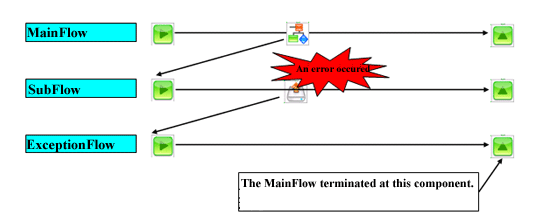
The diagram below shows an error occurring in a subflow. The flow continues to the error-processing flow. The error-processing flow ends with an EndResponse component.
-
EndResponse: If you're invoking a flow from an HTTP or SOAP trigger and you need to return a response, you can return the response from an error-processing flow. If you're using a URL trigger, end the error-processing flow with an HttpEnd component. If you're using a SOAP trigger, end the error-processing flow with an EndResponse component.
-
End: If you're invoking the flow with a trigger that doesn't require a response -- FTP, mail monitor, message queue monitor, or schedule triggers -- you can end the error-processing flow with an End component.
Or, you can use a Break component in the error-processing flow to end a loop or a parallel branch. Using a Break component here ends the request.
Returning to the Error Flow
You can go back to the error flow and get the error-processing flow's output after the error-processing flow finishes -- you can continue processing using the error-processing flow's output.
To configure a flow that follows this sequence, end the error-processing flow with the ExceptionReturn component. Set its ReturnType property to specify where in the flow to return to:
| ReturnType value | Flow Service action |
|---|---|
| ExceptionComponent | Return to the component that threw the error and process the next component. |
| EndOfParent | Return to the error flow and execute the end component to end the flow. |
After you specify where to return, you need to set the stream type for the ExceptionReturn component's output stream to be the same as the stream type of the output stream for the component you're returning to.
See below to follow each ReturnType configuration in an example flow: a FileGet component that throws an error in a subflow.
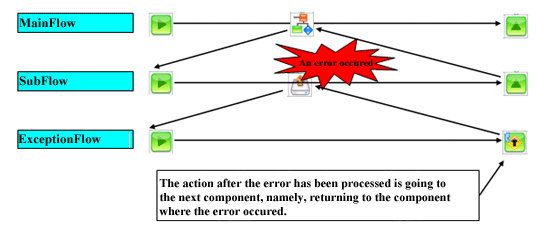
ReturnType=ExceptionComponent
After the error-processing flow ends, the flow returns to the subflow and continues to the next component, the component after the FileGet component, which processes the ExceptionReturn component's output stream.
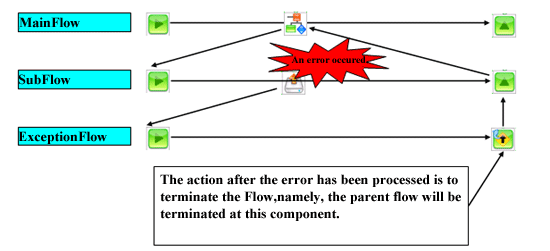
ReturnType=EndOfParent
In the example below, after the error-processing flow ends, the subflow also ends, which is the parent flow, and the flow returns to the SubFlow component in the main flow.
Note
Consider a simpler flow: if you ran the preceding subflow as the main flow. With ReturnType set to EndOfParent, after the error-processing flow ends, the main flow ends and the request ends.
Ending the Error Flow and Invoking Another Flow
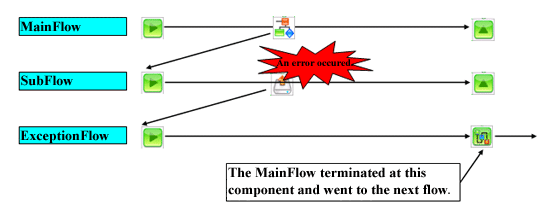
When you end an error-processing flow with a NextFlow component, the NextFlow component ends the error-processing flow, the error flow, and main flow. The NextFlow component then invokes a separate flow in the same request.
In the example below, an error occurs in a subflow. The flow goes to an error-processing flow that ends with a NextFlow component. The NextFlow component ends the error-processing flow, error flow (which is the subflow), and main flow, then invokes the next flow.
Getting and Setting the Error Message
Using the Mapper
If you're returning to the error flow, you can use a Mapper to get the error message:
- In the error flow, connect a Mapper to the error component's output node and double-click the Mapper to open the mapping window.
- In the Component Properties section, in the input fields section, connect the ExceptionString property.
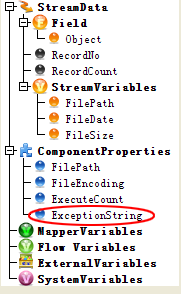
Defining the error message
The error message's value depends on the error-processing operation that you specify in the error component's Exception property. To set the error message from an error-processing flow, use an ExceptionReturn component and set the ReturnValue property.
The following table shows the value that each error-processing operation returns:
| Error-processing operation | Error message |
|---|---|
| Ignore | The error component defines the error message |
| Error-processing flow | You can define the ExceptionReturn component's ReturnValue property. |
Note
In the error flow, the error message is read-only. It's not displayed in the output fields in the mapping window, and it's not displayed in the component's inspector.
Processing the Error Message
You can use the BranchByException component to process the error message and handle errors and normal processing in the same flow:
- In the main flow, add the BranchByException component from the Palette to the workspace.
- Connect the BranchByException component after the component that's throwing the error.
- Click the BranchByException component in the workspace.
- In the inspector on the right, set the BranchByException component's properties to build the branch condition. See the Component reference for more information.
Explicitly Throwing an Error
Add an Exception component to explicitly throw an error.
Setting error details
Set the error code and error message in the Exception component's properties.
Getting the error details
You can get the code and message in the error flow or error-processing flow: reference the Error Message and Error Code system variables with a Mapper or property expression.
You need to enable access to the system variables: click the system variables icon in the toolbar and select the system variables in the Error Information section.