Diff Tool
You can graphically compare flows and SubFunctions in the Diff Tool application that the Flow Designer includes.
Getting Started with the Diff Tool
See Starting the Diff Tool for procedures to open projects, function collections, individual flows and SubFunctions, and versions of version-controlled projects and function collections.
Using the Diff Tool Window
The following diagram and table introduce how to use the parts of the Diff Tool window. See Exploring Differences for procedures.
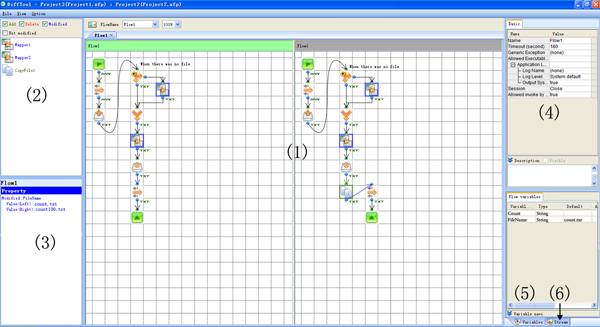
| (1) Workspace | Graphically compare flows or mappings. Select the flows or SubFunctions to compare in the menu above the workspace. Highlighting shows modified, added, or deleted flow elements. Click a flow element for details in the report pane and inspector. |
|---|---|
| (2) Differences pane | View added, modified, deleted, or unmodified components or mapper functions. |
| (3) Report pane | View the differences in the component or mapper function you select in the workspace or the differences pane. |
| (4) Inspector | View the properties of the flow element you select in the workspace or differences pane. |
| (5) Variables pane | View the variables of the flow you select or the parameters of the SubFunction you select. |
| (6) Stream pane | View the output stream definition of the component you select. |