Connecting SubFunctions
See below to add a SubFunction to a mapping and connect the SubFunction's inputs and outputs.
Adding a SubFunction
To add a SubFunction to your mapping, do one of the following:
- In the tree pane, drag the SubFunction node
 into the mapping area.
 - In the mapping window, drag the SubFunction icon
 from the palette's Control tab onto the mapping area. In the inspector, set the FunctionName property.
Note
Connecting Inputs and Outputs
See below to connect a SubFunction's inputs and outputs in the mapping window's mapping area and set function parameter values in the inspector.
Mapping Inputs
You can map the number of inputs that you specify in the SubFunction's Max Input Count property. You need to map at least the number of inputs you specify in the Min Input Count property; otherwise, the Flow Designer throws a validation error.
You map inputs to a SubFunction as ordered inputs: Input1, Input2, etc. You define the order with the order you connect the inputs.
Showing the Input Order
To show the order of a SubFunction's inputs, click the SubFunction in the mapping area. Each of the SubFunction's links displays the order number.
Changing the Input Order
Do one of the following:
- In the mapping area, right-click the SubFunction and click Change Input Order. In the dialog box that's displayed, select an input you want to move and click the arrow buttons to move the input up or down in the order.
- In the mapping area, click the SubFunction and, in the inspector, rearrange the inputs in the Link section: in the menu for an input, select an input that you linked.
Mapping Outputs
The SubFunction's icon displays the number of outputs that you specify in the SubFunction's Output Count property. You can map the output nodes that you need.
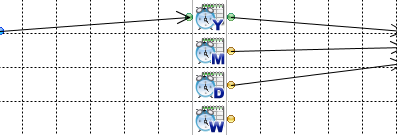
Example: DATESPLIT
The DATESPLIT function outputs the year, month, week, and day given an input date-time value. The following example maps the year, month, and day:
Setting Function Parameters
In the mapping window, click the SubFunction and enter parameter values in the inspector.
Updating a SubFunction
When you change the SubFunction's properties or parameters, right-click the SubFunction in the mapping that invokes the SubFunction and click Update Parameters.