Using Mapper Functions
You connect mapper functions to visually design the mapping that a Mapper component executes. See below for graphical workflows to add, link, and configure mapper functions.
Adding Mapper Functions
If you haven't already done so, select the Mapper component you want to define a mapping for and open the mapping window. Add mapper functions from the palette's category tabs.
Passing Input Data to the Function
Drag input fields to the function's green input node  to pass input data to the function.
Outputting the Results
Click and drag from the function's blue output node  to output the results. Drag the link to chain another function or drag the link to define the value of a field in the output stream.
Or, insert the mapper function into a link: drag and hold the mapper function over the link. If the pointer displays the shortcut icon, you can insert the mapper function.
Configuring Mapper Functions
You can set properties in the inspector on the right. Some mapper function properties can be set dynamically by linking a field to the mapper's input.
If the  icon is displayed next to the property, you can set the property by linking an input field to the mapper function in the mapping area. You need to link the input field in the necessary order.
For example, the LEFT string function's Count property is Input2. Input1 is the string to return the leftmost characters from.
To change the order of the inputs, click the ordered input parameter's box in the inspector's Link section and select a field you linked.
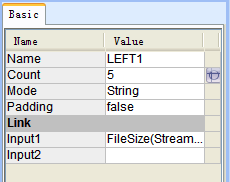
Or, right-click the mapper function in the mapping area and click Change Input Order. When you set the corresponding ordered parameter, the property displays the  icon.
icon.
- See Also
- To find the order of a mapper function's input parameters, see the help for the mapper function in the Mapper Functions reference.