 AWS S3Download - Download Files or Folders from AWS S3
You can download files or folders from Amazon Web Services S3.
If there is a file whose name is same as the file to be downloaded, the file will be overwritten.
Stream Information
| Input | Format | All |
|---|---|---|
| Number of Inputs | 1 | |
| Description |
This component doesn't use an input stream. |
|
| Output | Format | All |
| Description |
This component outputs the input stream as it is. |
Component Properties
| Name | Data Type | Mapping | Description | ||||||
|---|---|---|---|---|---|---|---|---|---|
| Use Conncetion | boolean | - |
Select whether to use below Connection for connection information.
|
||||||
| Connection | connection | - | When Use Conncetion is "true", specify an AWS to be connected. Select an AWS connection name created in the connection pane or the Management Console. | ||||||
| Connection Information | group | - | When Use Conncetion is "false", the property group will be used. | ||||||
| Access Key | string | - |
Specify an access key.
If the server is on an EC2 instance and no access key is specified, the IAM role of the EC2 instance will be used. When Use Conncetion is "false". use this setting. |
||||||
| Secret Key | password | - |
Specify a secret key.
When Use Conncetion is "false", use this setting. |
||||||
| Protocol | choice | - |
Specify HTTP or HTTPS for communication.
When Use Conncetion is "false", use this setting.
|
||||||
| Region | choice | - |
Select an AWS region to be used.
When there isn't any region you want to input among the options, you can input the string that represents it. For example, if it is Tokyo region, you can specify ap-northeast-1. When Use Conncetion is "false", use this setting. |
||||||
| Timeout (Second) | int | - |
Specify the time till timeout during request and connection in second.
When Use Conncetion is "false", use this setting. |
||||||
| Use Proxy Setting | boolean | - |
Specify whether to use the proxy set on the Management Console.
When Use Conncetion is "false", use this setting.
|
||||||
| Bucket Name | string | In & Out | Specify a bucket name for the download source. | ||||||
| Object Name | string | In & Out |
Specify an object name for the download source. If you didn't specify it, you can download all the files and folders from the bucket specified with Bucket Name. If a folder is specified as the object name, you can download all the files and folders from the folder. |
||||||
| Storage FilePath | remoteFile | In & Out |
Specify a file or folder path for saving the downloaded files. When the system is UNIX, and the path name is started with "/", it can be seen as an absolute path. When the system is Windows, if the path is started with a driver specifier, and "\\" is following to it, or the path is started with "\\", it can be seen an absolute path. If you have specified it with a relative path, the path is relative to the home directory specified with HomeDirectory. |
||||||
| FilePathDetail | group | - | Properties for specifying details of file path. | ||||||
| HomeDirectory | pathResolver | - |
Specifies the base folder when the path is written by a relative path.
|
||||||
| AllowAbsolute | boolean | - | Specifies whether to allow an absolute path. | ||||||
| AllowUpDir | boolean | - | Specifies whether to allow the ".." in order to move to parent folder. |
Loop
This component doesn't loop.
Transaction
| Commit | Do nothing |
|---|---|
| Rollback | Do nothing |
Exceptions
| Type | Parameter | Stream for error handling flow | Error Code | Description |
|---|---|---|---|---|
| General | None | This component's input stream | 1 | There is an invalid value in the connection's definition. |
| 3 | Failed to download the file. | |||
| 1001 | Failed to initialize the API client. | |||
| API error | Please refer to "API Error Parameters" . | This component's input stream | 201 | Received an error code during the API was running. |
| Connection error | None | This component's input stream | 301 | Connection failure. When com.amazonaws.AmazonClientException occurred, the exception was thrown. |
| FileAlreadyExistException | None | This component's input stream | 2 | Object Name is a folder, and there is a file with the same name in the download destination. |
■API Error Parameters
It is the parameter set when an API error occured.
| No. | Name | Description |
|---|---|---|
| 1 | Code | It's the error code got from AWS. About the description of the error, please refer to AWS website. |
| 2 | Message | It's the error details got from AWS. About the description, please refer to AWS website. |
Cancel of the flow
When flow is canceled, the flow usually aborts after the execution of that component is ends. However, the execution of this component is forced to be ended, then it aborts.
Bucket Name and Object Name's Setting Page
You can open the page using the connection information set for the component by double clicking the component or right clicking it to execute "StorageBrowser" on the menu.
You can set Bucket Name and Object Name , create a new bucket or delete buckets and objects on this page.
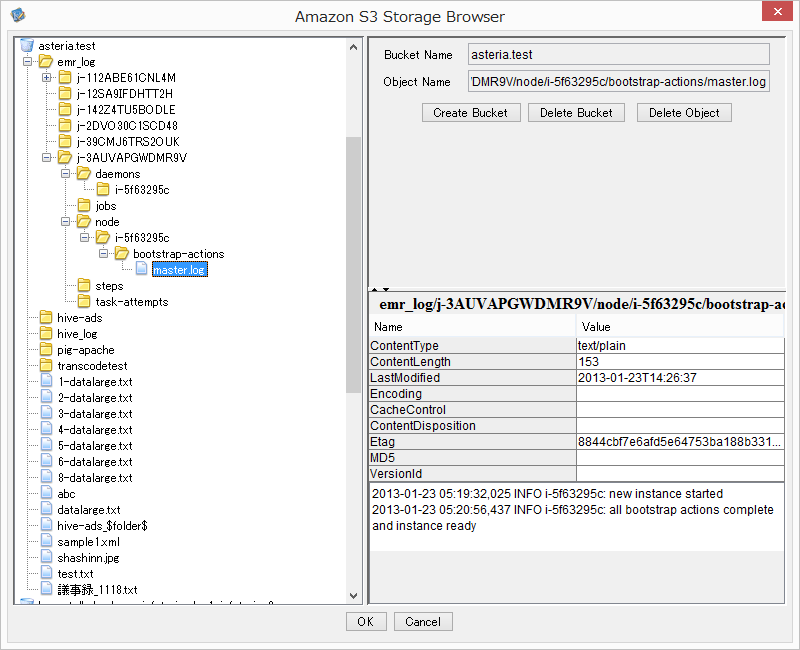
"Bucket" Tree List
The tree list of buckets and objects is shown here.
Select a bucket and an object to set this component from the list.
*If the information used in connection doesn't match the region information set for the bucket, maybe the object cannot be seen.
*If "." is used in bucket, and the connection information has been specified as "HTTPS", maybe the object cannot be seen.
Bucket Name
The selected bucket value is shown here.
Object Name
The selected object value is shown here.
"Create Bucket" button
The dialog box for creating bucket is shown here.
"Delete Bucket" button
Delete buckets selected from list from S3.
"Delete Object" button
Delete objects selected from the list from S3.
Property information
The property information of the buckets or objects selected is shown here.
If the selected object is a text or image which is smaller than 5MB, its content will be shown under the property information.
"OK" button
Set information of buckets and objects selected from list to the component's Bucket Name and Object Name property.
"Cancel" button
Close this dialog box.
There is no modification in the component's Bucket Name とObject Name property.