See Request List
Click the right menu "See request list" of "Monitor" tab, request was executed in the past and request is being executed are displayed as a list containing 50 items on displayed screen.
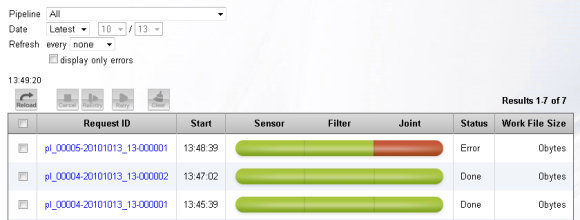
Click link of each request ID, and you can See request contents.
Search conditions
Request to display can be filtered, when search conditions is specified.
| Pipeline | Specify pipeline to display. |
|---|---|
| Date | Specify request starting date. |
| Automatic update interval | Read screen automaticaly again in specified time. It is convenient for monitoring error. |
| Only display error | Only display error status of request when the option is selected. |
Operation of button
Select the checkbox on the left of request to operate and click the button on the top of the list, you can operate the request as follows.
 |
Read screen again. |
|---|---|
 |
Cancel request execution and enter into stop status. As request under executing can not be cancel at once, set stop in advace according to the order of processing ending. |
 |
The request is turned on again by using the same input data. If input data from the sensor is not saved, this operation cannot be executed. If you want to use this operation, click the detail button on "all pipeline settings screen" and set "save" of "work file" item on. |
 |
Retry the request of retry waiting at once. Only request of in "Automatically retry waiting""Manually retry waiting" status can be executed. |
 |
Clear work file of request. Only request in "finish""cancel""error" status can be executed. |
- Related items