Customizing Panes
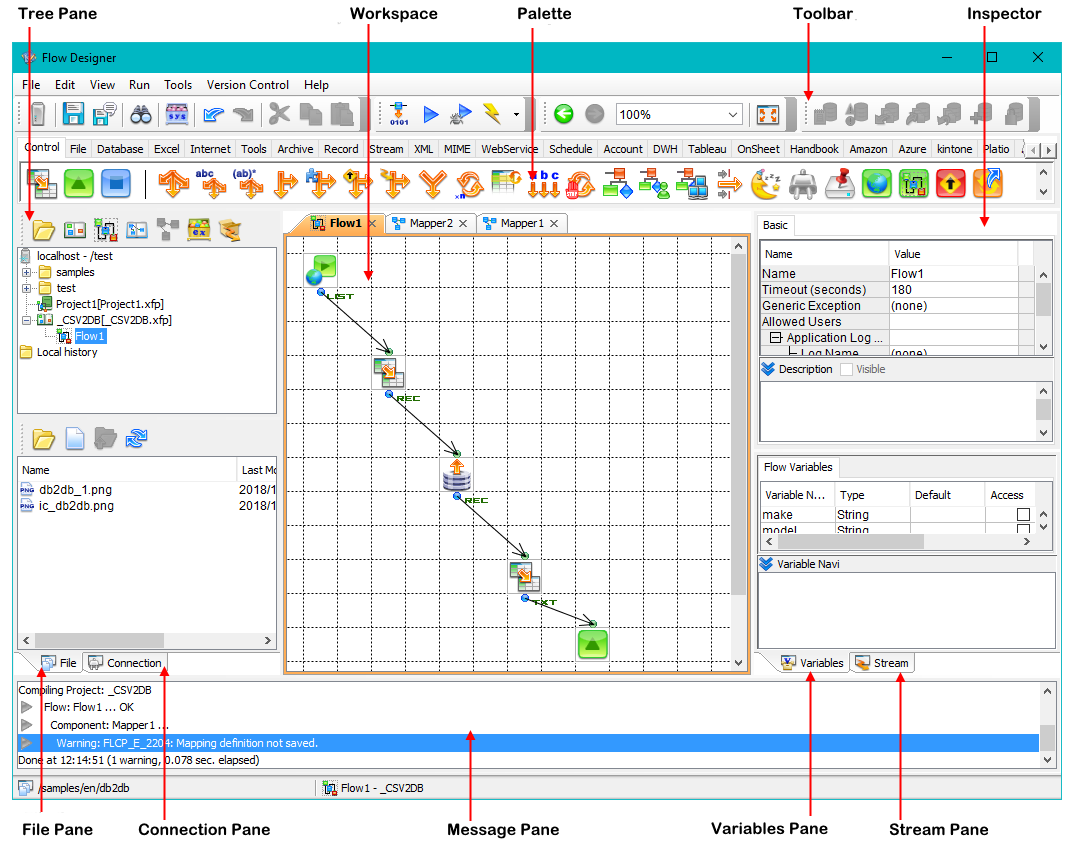
You can change the position, size, and behavior of the Flow Designer's panes: the palette, tree pane, file pane, inspector, stream pane, variables pane, and message pane.
Customizing the Pane Layout
You can show a pane's title bar to float, dock, and autohide panes: right-click in a pane or tab. You can drag a pane's title bar to float the pane or dock the pane inside the Flow Designer's window. You can also dock panes in tabs.
You can expand the workspace by clicking the pin button: the pane autohides at the edge of the Flow Designer when you're not using it.
Right-click the title bar to set other options.
Arranging and Docking Panes
You can interact with panes in the following ways to customize the layout:
Resetting the Layout
To reset to the initial layout, click View in the main menu and then click Initialize Layout.
Default Layout
The following diagram shows the parts of the default layout: