Design Flow
Here is the instruction for the elements of a Flow. Before beginning to study this page, you should master the basic knowledge and the basic operation mentioned in the previous part. After reading this page, you'll learn the elements of a Flow, which will help you design a Flow by using Flow Designer.
Flow Elements
The elements of a Flow are as below.
Components
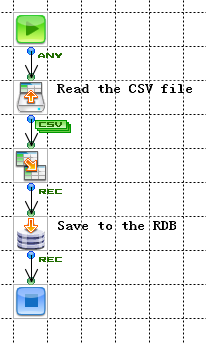
In Flow, the data processing location is component. The essentioal information used for prossessing data with component is set in the component property. Some components need licences, so the icons of the components without licences are grey. If you double click the components in the Flow window of Flow Designer, you will find some componets have their own specific functions, for example, the components that can start the tools related to settings.
In the Flow window, you can connect components with lines according to the processing procedure, then the data will be transmitted along the lines.
Component Property
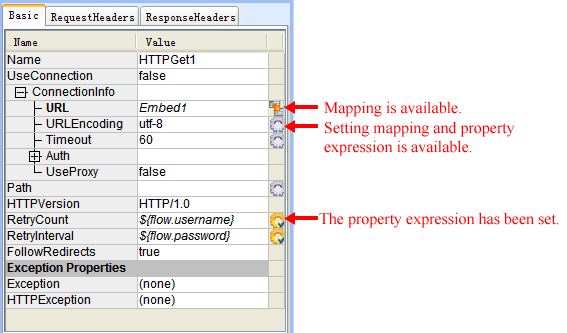
You can set a component property by entering values into the inspector directly, and you can also set a mapper or a property formula to set values dynamically while running. Some components have tab pages.
HTTPGet Component Property
"Help" Documents of Componets
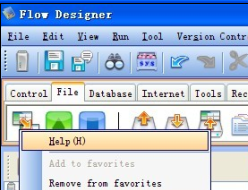
Help documents of the componets are the instructions about input data, output data, component property, error proccesing and supplementary. To open a help document, you can right click the component in the pallet or in the Flow window to open a menu, then click "Help".
the Start Component and the End Component of a Flow
There must be a start component and an end component in a Flow.
Regarding to the components used to control data processing of a Flow, we will instruct about it in the "The processing in a Flow" later.
You can refer to "Processing flow in a Flow"-"Start and end a Flow" under the "More topics" on the left for more information about the start component and the end component of a Flow.
Start a Flow
A Flow must start from a start component. There are 2 kinds of start components. They are Start Component and HttpStart Component. The HttpStart Component is used when start a Flow with HTTP. Comparing with the common Start component, it's more convenient to process the form parameters and Cookies. The transaction control of a Flow can be set in the "Transaction" property of a start component.

End a Flow
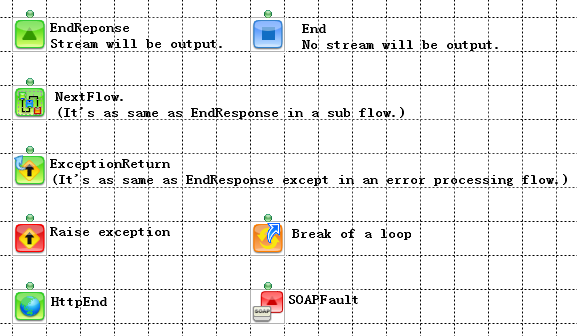
To end a Flow, you can use an end component. If the link of the component is unstable, it's because a compile error occured. A Flow will return an output stream as a result. If there are multiple output streams in an end component, an error will occur when the Flow is running.
The end component is a terminal for a loop. If there is a loop in the Flow processing, once the loop reaches the end component, it will soon return to the component where the loop began (Except the Break Component). We will instruct more about loop in the "Loop" later.
the Components Classified according to the Relationship to the Stream
The components classified according to the relationship to a steam are as below.
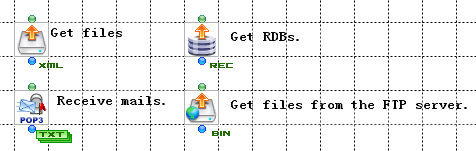
Create a Stream
These components always import external datas and output them. To suppor large volumn of data, there are some components which can execute loop. Most of the properties of the imported data are set by the stream variable. If you don't use the input stream, you can connect multiple links to the input side.
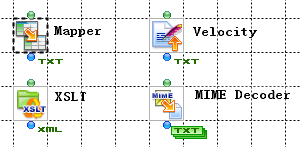
Process a Stream
These components can process input stream and output it. Most of the input stream types and the output stream types are decided. The stream variable can be set by mapper.
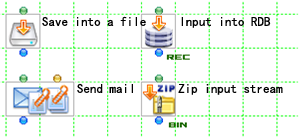
Apply a Stream
These components can process data with input stream. Some components can process multiple streams, such as the component used to send E-mail or ZIP component, so each stream should be set by using the stream variable, instead of the property. Then, you can process data with the set stream.
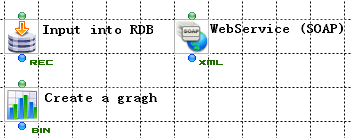
Define a Stream
These components always define the formats of the output stream, but some define the input streams'. The stream definitions of these components are copied by the previous components. The stream definition is copied by Flow Designer automatically.
Process Without Stream
These components can process without input stream, and always output the input stream directly.
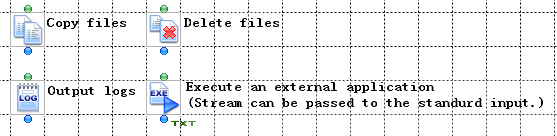
Customized Components
The below 2 kinds of components can be customizend by users.
- SubFlow Component. The Flow processing of this component can be defined as a subroutine, and called from another Flow. Then you can execute this Flow.

※ It's convenient to use the same processing in multiple places. - JavaInterpreter Component. This component describes processing with Java source code, and then execute it.

Streams
Stream is the data transmitted in a Flow. The 9 formats used to process data in the Flow service are called stream types. The specific property that each stream has is called stream property. Moreover, each stream type processes data in a location called field. You can define a name and a data type for each field, and the definitions are called field definitions. In the stream pane of the Flow Designer, you can define the stream property and the field for an output stream of each component. These 2 definitions together are called stream definition. Moreover, it has stream variables as supplementary information.
Regarding to the stream variables, we will instruct about it in "Variables". Moreover, please refer to "Flow Elements"-"Stream" under "More topics" in the left menu for more information about stream, such as the transmission between the stream types or the transmission between field data types.
Stream Types and Field Definitions
The 9 stream types and the field definitions are as below.
| Stream types | Stream contents | Field definitions |
|---|---|---|
| XML | The element content and property value of XML | name, data type, repetition, node type, display name |
| CSV | The data seperated by delimiter according to the CSV format. | filed name, data type |
| FixedLength | The data seperated by the field definitions | field name, data type, starting position, length, point position |
| Record | The record column processed by RDB | field name, data type |
| ParameterList | Parameter data | field name, data type (The array can be defined.) |
| MIME | Stream itself | The single stream of Binary Type. |
| HTML | Stream itself | The single stream of String Type. |
| Text | Stream itself | The single stream of String Type. |
| Binary | Stream itself | The single stream of Binary Type. |
Memo
"Any" only exists in the output stream type of Start component and SubFlow component. "Any" means the undefined status of a stream. The component following these components should be able to input any type of the stream without processing them.
Stream Pane
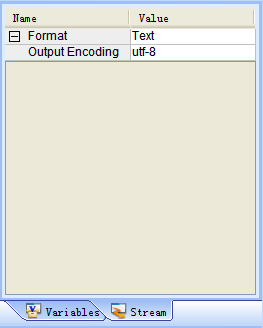
If the stream type is Text, there is no field definition for it, because it's a single stream.
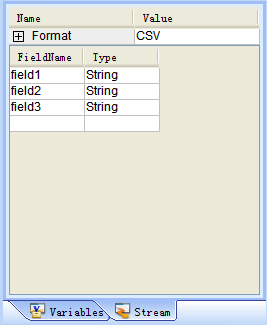
If the stream type is CSV, the field name and the data type will be defined.
Field Data Types
The basic field data types are as below.
| Integer | The integer from -9223372036854775808 to 9223372036854775807. |
|---|---|
| Decimal | numbers with infinite precision |
| String | The string up to 2147483647 characters. |
| Binary | The byte sequence up to 2147483647 bytes. |
| Double | The floating point from -1.79769313486231570e+308 to +1.79769313486231570e+308. |
| DateTime | It's A.D. The format is month/day/year/hour/minute/second/1/1000 second. Example:January 1st, 1970,00:00:00 |
| Boolean | True or (true) or false (false) |
※PackedDecimal Type and ZonedDecimal Type can be used in FixedLength Stream. To resolve the virtual point for inputing data, Zone・Pack is recommended, so in this application program Decimal Type is adopted.
※The array of string can be used for ParameterList Stream.
Stream Property
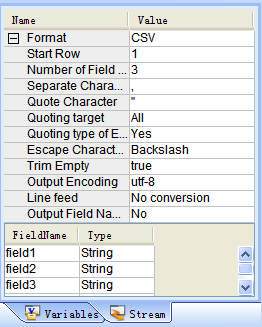
Every stream type has its property. There are settings for the created data and the parameter used to create data in a property.
Inspector
Variables
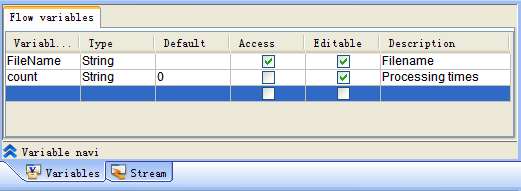
Different with the stream flowing in a Flow, sometimes it's necessary for you to refer to and keep a value. In a Flow, you can refer to and keep the values as variables. To set a variable in the Flow Designer, you can map a value in the variable field of the mapper. To refer to a variable, you can output a value from the variable field by mapping in the mapper, or use property formula or special notation at the component.
Generally speaking, a variable can be set or referred to from a Flow or an arbitrary one of multiple Flows. Different from this variable, there is a local variable which can only be set and referred to with one component, and a stream variable which can only be set and referred to while a stream format is valid. The variables in the Flow Service are as below.
- Flow variable
- External variable set
constant / request variable / session variable / application variable - System variable
- Local variable
- Mapper variable
- Stream variable
Please refer to"Elements of Flow"-"Variables" under "More topics" in the left menu for more information about each kind of variable.
Variable pane (Flow variable)
Variable Types and Their Scopes
The scope of each type of variable in the Flow service is as below.
| Variable types | Descriptions | ||||
|---|---|---|---|---|---|
| Flow variable | The variable can be set and referred to at a running Flow.
|
||||
| System variable | The variable can be set by a Flow service, such as environment information. It is for reference only. | ||||
| Local variable | The variable can be referred to with a component running in a Flow.
|
||||
| Mapper variable | The variable can be referred to with the mapper running in a Flow.
|
||||
| Stream variable | The variable can be set and referred to while the stream is valid only.
|
||||
| External variable set | |||||
| Constant | It's a variable in an external variable set. It can't be changed, and is shared by multiple Flows and projects. It's for reference only. | ||||
| Request variable | It's a variable in an external variable set. It can be set and referred to for being shared by multiple Flows and projects while the request is valid. ※ Request means a series of a Flow processing from the Flow begins until the Flow ends, including SubFlow, Exception Flow and running Flow.
|
||||
| Session variable | It's a variable in an external variable set. It can be set and referred to for being shared by multiple Flows and projects while a session is valid.
|
||||
| Application variable | It's a variable in an external variable set. It can be set and referred to for being shared by multiple Flows and projects forever. ※ A variable value is saved in a file named "external variable name.xvar.data". The value will be kept after restarting the Flow Service.
|
||||
Mappers
The Mapper component used to map data is called Mapper. You can double click a mapper in the Flow Designer to open a mapper window. In the window, you can map data by connecting the fields of input stream and output stream.
Screen of the Mapper Window
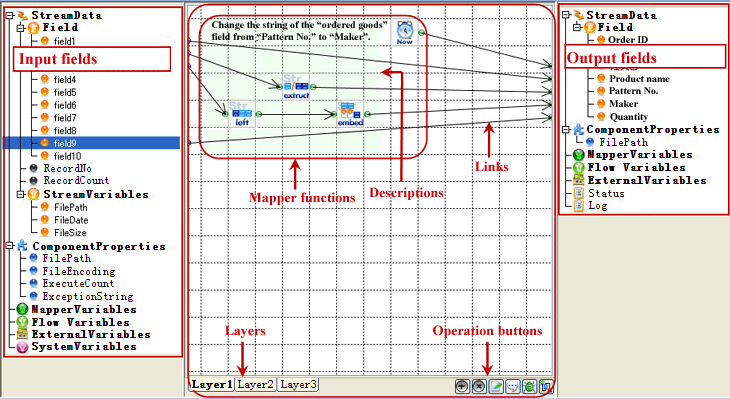
The elements of a mapper window are as below.
- On the left:input field
- On the middle: mapping area
- Mapper functions
- Descriptions
- Link lines
- Layers
- Operation buttons
- On the right: output field
| Name | Descriptions | ||||||||||||||||||||||
|---|---|---|---|---|---|---|---|---|---|---|---|---|---|---|---|---|---|---|---|---|---|---|---|
| Input field | Here are the input stream fields input into the Mapper component, the component proverty connected to the input side of the mapper, and kinds of variables. | ||||||||||||||||||||||
| Mapping area | Create a connection between the input side to the output side.
|
||||||||||||||||||||||
| Output field | Here shows the output stream fields output from the Mapper Component, the component proverties connected to the output side of the Mapper Component, and kinds of variables. |


Memo
Please refer to "Elements of Flow"-"Mapper" under "More topics" on the left side menu for more information about input/output fields and mapper operations.
Pallet
Once open the mapping window, you will see a pallet where there were components shown in the Flow window. In the pallet, there are tabs for kinds of mapper functions used to convert data. You can drag out a mapper function icon from here and put it to the mapping area, then drag the icon to change the place. You can also drag out lines from the right point or the left point to connect it to the other mapper function icons or input/output fields.
Mapper Functions
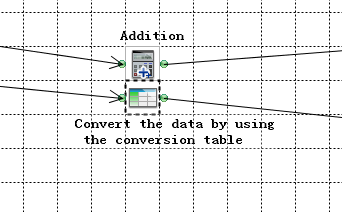
As same as the functions in programming, a mapper function operates with multiple parameters and returns results. A mapper function has its property which is set during designing to map. The number of the parameter is decided by each function. The property values of some functions are used as default parameters. Some functions will output multiple return values. Moreover, the functions are executed by each record only once.
In the mapping window, the order by which connect the input field to the function is considered as a parameter. The order can be changed after having connected.
Function Property
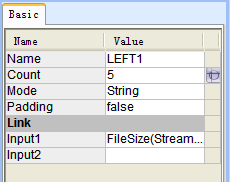
To set a function property, you can enter a value directly by the inspector, or you can also set a value dynamically during the funcion is running. Under the "Link" item, there is an input link list. You can change the input order here.
To set a property value, you can enter a value into the blank directly, or you can select a value from a pull-down menu. Moreover, you can replace a property with a value input by a link. According to the order by which the links were put, you can replace the corresponding properties with the links. Please refer to the "Input" part in the "Help" document of each function for the relationship between the input orders and the corresponding property. If the property can be replaced with a link, there will be an  icon shown on the right of the blank. If the property has been replaced, the icon will change into the
  icon.
icon.
Left Function property
Mapper Function Types Classified according to the Number of Input/Output Values
Mapper function types classified according to the number of input/output value are as below.
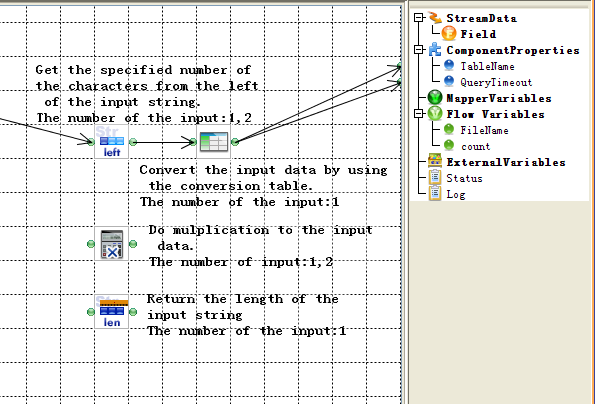
The functions whose number of input values is decided.
The number of the input value is decided by the function definition.
The function which has no input value
The function outputs a value from the property value without using any input value.
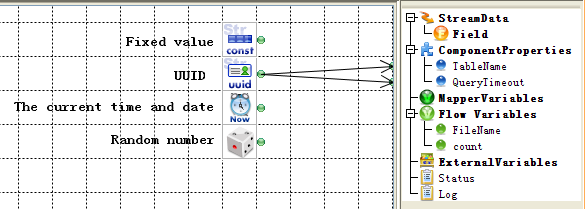
In the mapping above, the values set in field1 and field2 are same. When there are multiple records, the values of each records are different with each other.
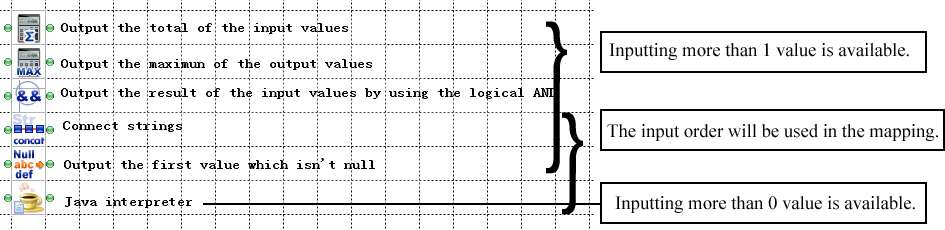
The functions whose number of input value is undefined
The number of the input value for the functions is not decided. You can enter multiple values.
The functions whose input value is only one
Most of the mapper functions can only output one value.
The functions which can output multiple values
Split Function can output 2 values. Except this one, you can set the number of the output value for the other functions according to the properties.

Customized Functions
There are 2 types for the customized functions.
- SubFunction Function. It gets mapper functions together to define its processing procedure as a subroutine, then call it from a mapper to use.

※You can register this function into the function library, which is convenient to use the same processing in multiple places. - JavaInterpreter Function. It runs after discribing the processing with Java source code.
Connections
Connection is connecting information used in a Flow, such as database, Internet protocol. Connection settings is used to create a connection name for connecting information, such as server name, port number, usename, password, and define it. Having defined it, you can refer to connecing information by a component easily. You can define some components' properties directly without using any connecting information to connect.
Please refer to "Elements of Flow"-"Connections" under "More topics" in the left side menu for more information about connecions, for example, the definition of each connection type.
Connection Types
The connection types are as below.
| Connection types | Connection information |
|---|---|
| database | RDB, Notes, XMLDB (Tamino, Neocore, Luxeon) |
| Internet | HTTP, FTP, SMTP, POP3, IMAP4 |
| Others | Queue, JNDI |
Connection Types and the Management
Connections can be managed by the Flow Designer and the Management Console. There are 2 kinds of connections, which are user connection and system connection. The system connection can only be created and changed from the Management Console.
| Connection types | Descriptions | Create・change |
|---|---|---|
| User connection | The connection can only be used by the created users. | the Flow Designer the Management Console |
| System connection | The connection can be used by the all uses created in the Flow Service. | the Management Console |
How to Create a Flow Connected with a Connection Definition
You can create a Flow by following the steps below, to connect with a connection definition.
Test to Create, Save, Connect Connections
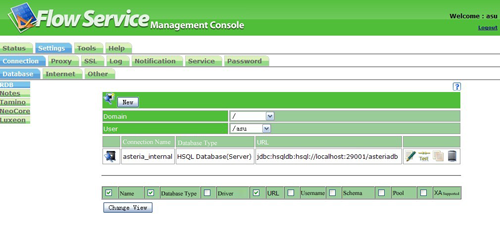
You can create a connection name for a connection definition, and test to create, save, connect the connection in the Flow Designer or in the Management Console.
Connection pane
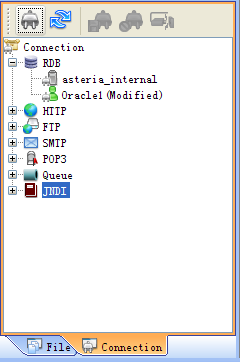
the Management Console
Memo
If the test succeeded, the Flow can be used.
If the test failed, you should check the related files and the connection content.
Put a Component to Connect in a Flow
The components for connecting are under the tabs of "database", "Internet", "Others".
"Database" tab

Select a Connection Name in the Component Property
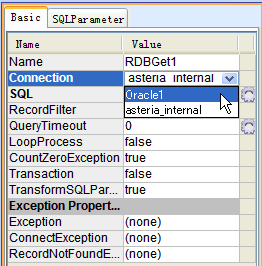
Click the "Connection" property to open a pull-down menu, then you will see the created connections. Then you can select one from them.
Property of the RDBGet Component
Connection Pool
You can create a pool for the database connection which always cost much to connect. Then you can use the connection pool once you run a component, instead of connecting for everytime. You can select whether to use the connection pool or not in the connection settings of RDB.
Memo
The settings for a connection pool can be done in the "Flow engine" window of the Management Console. The path is "Settings"-"Service"-"Flow".
- Connection pool size (The initial value is 20.)
- Connection pool time-out period (The initial value is 7200 seconds.)
- The times of reusing connection (The initial value is 100.)
Requests
Requst means a process from a Flow begins until the Flow ends, including a series of processings, such as SubFlow or NextFlow. A request is executed in single thread from start to end. After the specified time, to execute another Flow, the Flow executed by the component under the "Schedule" tab, such as the Timer Component, will be another request, and be executed in parallel in multi-thread.
Regarding to more information about the timer processing by SubFlow, NextFlow, Timer Component, we'll instruct about it in "SubFlow", "Next Flow", "Timer" later.
Session
Session is a run-time information existing across requests, and can be recognized by Session ID. In a Flow, the information managed by session is as below.
| Execution user | The user who executes the Flow |
| Session variale | The variable can be set and referred to with a same session across running Flows. |
| Connection information | The connection information used in a Flow, including database and Internet protocol. |
Sesstion is always used when it's necessary to manage status, such as login or logout by a Web application. If the Session ID of the request is as same as the current session, the current session will be used in the request. If these 2 Session IDs are different, a new session will be created. If the "session" property of a Flow is specified as "Close when finish", a session will be returned when the request finishes. If it's specified as "Keep", the session will be kept until the Flow is time out.
Transaction
The transaction in a Flow is used to prevent from the processing of each component being inconsistent with each other when an error happens in a Flow. Transacting is a status that prevent from processings in a Flow being inconsisitent with each other. "Transacting" can be set in the property of the Start Component.
For more information about transaction, please refer to "Element of Flow"-"Transaction" under "More topics" in the left side menu.
External Files of a Project
In order to keep data by Flow or make designning more easy, the Flow Designer can create, save and use the 3 kinds of external files as below, besides project files. The external files can be managed under the home directory as same as project files.
External Variable Set
External variable set is a location to make a variable group to be shared by multiple Flows and projects. The extension is ".xvar". The file is called external variable set file.
Shared variable group is a location to define and save each variable with a constant or a request variable or a session variable or an application variable in an external variable set. To use the variables in a Flow, you can declare the external variable set in the Flow. Declaration is to drag the external variable from the tree pane to anywhere of the Flow window.
Function Library
Function library is a location to collect multiple functions. The extension is ".xmp". The file is called function library file.
Function can define mapper function libraries as functions by using mapper function just as to define a subroutine, then can be called from a mapping window. The function called out from a mapper is called subfunction, which also can be considered as a subflow's mapper version. To use subfunction in mapper, you should drag a subfunction of function library shown as a tree from tree pane, and put it to anywhere of mapping window, or drag a SubFunction mapper function from pallet to mapping window, and specify a created name for it.
Stream Definition Set
Stream definition is definition information consist of stream property and stream's field definition. Stream definition set is a location to collect multiple stream definitions. The extension is "xsf". The file is stream definition set file.
If you want to use a stream definition for multiple components, you can create a stream definition set with the stream definition previously. When create a Flow, you can select a stream definition from a stream definition set in stream panes of components to set a definition information easily. Moreover, having set a synchronization for a stream definition, you can change stream definitions of multiple components in batch by synchronizing after changing a stream definition.
Memo
Different with an external variable set and a function library, a stream definition set is a kind of function to help develop when create a Flow in the Flow Designer, so the file is not needed when a Flow is running.
Processing in a Flow
We have instructed about the start component and the end component of a Flow in "The start component and the end component of a Flow" .
Loop
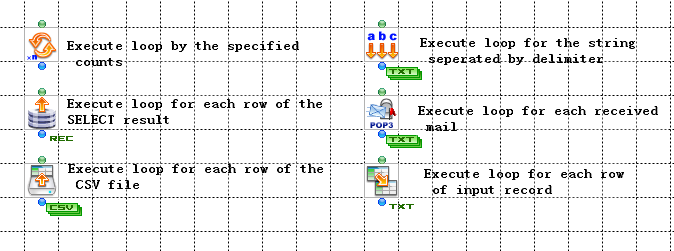
Loop is a kind of action that begins from a component, and repeat the following processing for many times. Having started a loop, the loop runs along components from the component where strated until a LoopEnd Component or an end component, then returns to the component where started to repeat the processing. For example, after the RDBGet Component which releases select sentence to RDB have made a result set, it can select whether to pass the set to a component, or loop each record one by one.
Components where a loop starts
Caution for executig a loop
- If a component makes a result set to pass, the whole processing will be done on memory, so the limit value for processing large volumn of data is decided by the physical memory. If the component processes the result set by looping, each record will be processed one by one, so the memory used for processing can be smaller. You can't start a loop at a component whose processing is parallelism, because a loop will lead to a run-time error.
- Even if there is only one pending component, it can't begin to loop yet. In other words, a loop can't beging from a parallelism status.
Conditional Branching
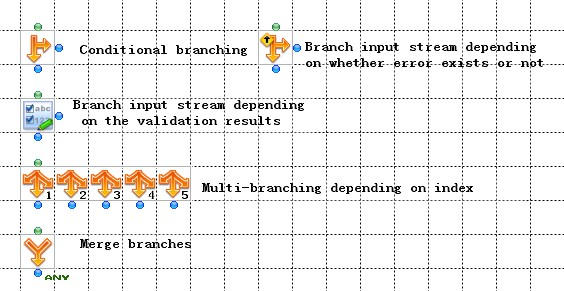
Component that has connector in the right of its icon can output stream from right point or bottom point to branch according to the condition. The processing like this is called "branching".
Branching components only execute either of the branches. Which branch will be executed is decided by the condition set.
Conditional branching components
Branch Meeting
The BranchEnd Componet is used to get branches meet. If the definitions of the input streams are same, you can map data by putting a mapper for the next step. If the definitions are different, you can't map data. During mapping, to reflect the modified field definition of input stream to the BranchEnd Component, you can right click the component to open a menu, then select "Updata stream definition" from the menu to update.
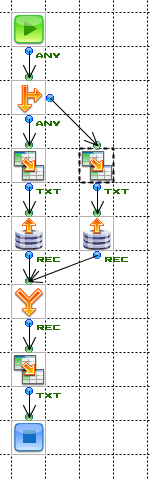
You can end a Flow by describing processing for each branch.
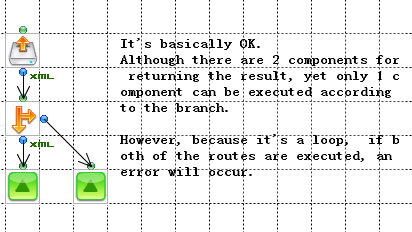
Parallelling
If you want to do different processings for the stream output from a component, you can connect multiple components to the component directly. The branching like this is called "parallelling". Once click the component where parallelling started, 2 blue icons will be shown to refer the operating order.
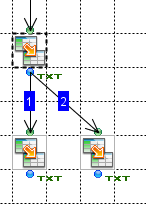
Execution Order of the Componenst
The execution order from the component where paralleling started is that the components except the next running objects are in pending status. The Flow runs in order until either of the status as below.
- Reach an end component
If a Flow reach an immediatly ending component such as Exception, the Flow ends. Otherwise, components are executed in order from the component selected by the previous pending component - Reach a component where parallel state ends
Parallel state ending means a state that streams flowing along parallel branches meet at a component which can receive multiple input streams. The component can't be executed until the all input streams get here. Once a stream in one of the branches reaches a component where parallel state ends, the Flow will run from the component in order if the component can be executed (namely the all input streams have got here). However, the component will be pended if it can't be executed, then the other pending components will select running objects for the next step, and the Flow will run in order.
The result when a Flow reach the component where parallel state ends
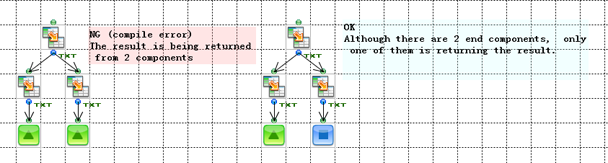
SubFlow
SubFlow is another Flow like a subroutione called from one Flow. The called Flow is SubFlow, and the place where the SubFlow is called from is a caller Flow. You can call a Flow in the same project or in another project from a caller Flow. You can put a SubFlow Component in a caller Flow, and specify to call which Flow of which project for its property. Data can be transmitted between a caller Flow and a SubFlow.
For more information about the input/output stream and the parameter of a SubFlow, please refer to "Processing in a Flow"-"SubFlow" under "More topics" in the left side menu.
Memo
If we consider the relationship between Flows as a parent-child relationship, SubFlow is like a child in this relationship. So "SubFlow" is not a special Flow. A SubFlow begins from a Start Component, and can end with any end component (except NextFlow Component).
NextFlow
After a Flow has finished processing from start to end, you can continue to call out another Flow. The called Flow is "Flow to execute next" or "Next Flow", and the place where a Next Flow is called from is a caller Flow. To specify a Next Flow, you can end a caller Flow with a NextFlow Component, and select a Flow to execute next in the "Flow to execute next" property. Please refer to the help document of NextFlow Component for more information.
Memo
NextFlow Component is undet the "Control" tab.(All of the end components are under "Control" tab.)
Timer
While a Flow is running, timer can make another Flow running in another thread, without infuencing the former Flow processing data until finish in the former thread. Timer contains a Timer Component and a Schedule Componet. The Timer Component will execute another Flow once the time specified in the property is expired. The Schedule Component can execute a Flow daily or weekly or monthly. Please refer to the help document of each component for more information.
Memo
Components related to Timer are in the pallet under the tab of "Schedule".
Error Processing
When the components in a Flow aren't able to continue processing or failed to process, an error happened. You can specify a post-processing for errors, for example, do nothing, or ignor the error, or call a Flow where has decribed the post-processing (Exception Flow).
For more information about the post-processing and the Exception Flow, please refer to "Processing in a Flow"-"Error processing" under "More topics" in the left side menu.