The tab screen is configured to manage the various settings of the flowservice for each feature on the [settings] menu; “connection”, “proxy”, “SSL”,”log”,”notifications”,”services” and “password”
| Connections | From flowservice, connection settings and changes can be made
from the menu below.
|
||||||||
| Proxy | From flowservice, HTTP and HTTPS requests by proxy send settings are carried out. | ||||||||
| SSL | The certiticates required
to communicate when using SSL can be managed from the menu below.
|
||||||||
| Log | The menu below allows for the modification of
various flowservice log settings and the creation and
modification of flow output settings.
|
||||||||
| Notifications | To set up email notifications to administrators when server failures occur. | ||||||||
| Services | Settings can be managed for each service from the menu below. |
| Flow | The various listener communication of the flow service and detailed information on the operating environment can be set. |
| FTP | The settings of the FTP service built into the service flow can be modified. |
| MC | The administrative console login timeout and menu settings can be modified can change the login timeout for the administrative console and menu. |
Various「FlowService」settings are possible.
If a [FlowService] setting is updated, restart is required to enable「FlowService」.
| HTTP Listener | Set
enable or disable HTTP listener. With only communcation such as SSL if you do not want HTTP traffic, please disable. The default is "enabled". |
| HTTP Listener port number | Set the HTTP communication port number. The default is 21380. |
| HTTPS Listener | Set enable or disable the
HTTPS listener. After registering the flow service administration console server certification, set to「enable」to accept HTTPS traffic.The default is “disabled”. |
| HTTPS Listener port number | Set the port number for SSL communication ( HTTPS
communication) The default is 21443. |
| AJP13 Listener | Set the AJP13 listener to
enabled or disabled. The default is「disabled」. |
| AJP13 listener port number | Set the port number
for AJP13 communication. The default is 21389. |
| Flow designer listener | The enabled/disabled setting for the flow designer listener and port changes can only be set as socket options. |
| No socket options set | Socket option set up setting. |
| Allow/deny host connection | Set the enabled/disabled setting for the allow/deny filter function for hosts connecting to the FlowService. If “enabled” is set, only those on the “the allowed host list” can be connected to the FlowService and those on the “denied host list” are rejected. The default is「disabled」. |
| List of allowed hosts | Sets the IP address for hosts allowed to connect to the FlowService. The IP address* can be specified by wild card. To add an IP address click “add” to the right after the IP address has been entered. To delete an IP address from the list, select the IP address to be removed and click on “delete”. This setting is only enabled if the allowed/denied hosts connection filter is set to “enabled”. |
| List of denied hosts | Set the IP address of the hosts denied connection to the FlowService. The IP address* can be specified by wildcard. To add an IP address click “add” to the right after the IP address has been entered. To delete an IP address from the list, select the IP address to be removed and click on “delete. This setting is only enabled if the allowed/denied hosts connection filter is set to “enabled”. |
| Initial memory size (MB) | The initial memory size for the FlowService is set in MB(megabyte) units. The FlowService initial memory setting is ensured and will be extended as much as required. Set “maximum memory size”. If none is set the value is 2MB. |
| Maximum memory size (MB) | The maximum heap memory size for FlowService is in MB(megabyte) units. FlowService will continue to expand the physical memory space as required. The value set here will be the upper limit. However, in addition to the heap area specified, FlowService ( Java process) also requires areas such as a stack area so it is recommended that approximately 50% of the maximum physical memory is specified. If the approximate value is 32bit, the Solaris10 ( SPARC) platform is less than 4000 and the x86 platform is less than 2000. In particular for Windows, if you specify more than1400-1500, FlowService may not start (limits vary by product or windows version). For 64bit, it may not be effective as the platform may not be large enough. Only a relationship with the physical memory. Other vendor platforms and Java VM depend on their specifications. If no value is set it is 64MB. |
| Other options | Set FlowService start up options. Java program options may be initiated. However, if the configuration is incorrect FlowService may not be able to load, so be careful with this setting.-As Xms is "initial memory size" and Xmx is "Maximum memory size" are set here do not enter. |
| Thread pool size | Sets the minimum number of threads that run continuously on the
flow engine standby mode. Increasing this value increases the
response rate. The default value is 8. |
| Maximum thread size | Set the maximum number of threads that can run on the flow
engine. If an error occurs where it has run out of threads, then increase this number. However, if it exceeds the limits of the CPU and OS it can cause performance degradation. The default value is 32. Set the value of the “thread pool size” as above. |
| Request queue size | Set the request queue size. If there is a new flow engine
request, the request is entered in the request queue. If there is
space to run threads, the requests at the head of the request queue
will be sent. If the number of threads running are the same as the
“maximum thread size” then the threads have to wait
until this number is below the “maximum thread
size”. Therefore we set the number that can be saved to wait in the request queue. The default is 64. If there are more than the request queue size then these will be discarded. In this case set a higher value. If the request queue size is set to 0, then is is unlimited. Make settings according to the memory size assigned to the FlowService. |
| Request queue alert size | Set the flow engine request queue alert size. If this value exceeds the accumulated number of requests in the flow engine request queue, the alert log output is as below. 「AFRM_W_2007: approaching the upper limit of the queue」 the default is 48. There will be no log output warning if you set this value to 0. |
| Monitor timeout (seconds) | Set the timeout for the
flow engine thread execution. If the flow execution thread is not completed within a certain time limit、the error log is not detected as a normal thread. However be careful as it does not stop the flow execution itself. If it is taking longer to execute the low and the error log appears frequently, then increase this value. The default is 300 seconds (5 minutes). |
| Project-Cache Size | Set the project cache size. The project will be loaded on the memory of the initial flow engine in compile time or on request. The loaded project is kept in the memory cache size. If the project exceeds the cache size to be retained, then a project is removed from the memory based on the longest running LRV algorithm. The default is 30. |
| Session Timeout (seconds) | Set the time until timeout for the flow session. If you are performing the flow from the flow designer, this setting is always enabled and is set to 30 minutes. |
| Connection Pool Size | Set the size of the connection pool. Connections of database, etc. are cached until the maximum number for each name in this connection. The default is 20. |
| Connection Pool Timeout (seconds) | Set the time before time out when the connection is no longer used in the connection pool. The default is 7200 seconds (2 hours). |
| Reconnection number | Sets the number of reconnections in the connection pool. This reconnection is discarded from the connection pool and a newly created connection is entered in the connection pool. The default is 100 times. |
| AAC cache time(seconds) | Set the time of the cache for the flowservice account. Changes to the flowservice administration console flow service account are reflected after a set time in the FlowService. The default is 900 seconds (15 minutes). |
| DTD/XML schema file path | Sets the
location of the DTD/XML
schema file. From [INSTALL_DIR]/flow set the relative path. The default is「services/flowservice/dtd」. |
| JDBC Forward Only driver | Sets the name as
RDB cursor control of the TYPE_FORWARD_ONLY JDBC driver. Set the
JDBC driver names with the separator 「;」. The default is 「sun.jdbc.odbc.JdbcOdbcDriver(JDBC-ODBCbridge)」 |
| Interval recovery | Set the
interval of the recovery process if an error occurs during a
recoverable transaction(※1) commit or rollback. The recovery
process is performed after the time set when an error occurs. The default is 300 seconds(5minutes). |
| Retry count recovery | Set the interval
of the recovery process if an error occurs during a recoverable
transaction(※1) commit or rollback. If this error is not recovered after the set number of times, the recovery process will terminate upon email notification. The default value is 3. |
| E-mail notification recovery | Set whether there is any mail notification for recoverable
transactions(※1)commit or rollback errors. There are mail notifications for the following.
|
| Enable /flowexec | Select if flow is run with the context path「/flowexec」in
the previous version or even the current version context path
「/flowexec].
Enter the name of the 「/flowexec」context
path users in the “User” field with the
separator「;]. For
compatability features, usually use “none”. It is
possible there will be performance degradation compared to normal
running configurations. |
※1、currently If using RDB connection the recoverable transaction is "XA" .
| Thread pool size | Sets the minimum number of threads that run continuously on the
HTTP listener standby mode. Increasing this value increases the
response rate. The default value is 8. |
| Maximum thread size | Set the maximum number of threads that can run on the HTTP
listener. If an error occurs where it has run out of threads, then increase this number. However, if it exceeds the limits of the CPU and OS it can cause performance degradation. The default value is 32. Set the value of the “thread pool size” as above. |
| Request queue size | Set the HTTP listener request queue size. If there is a new HTTP
listener request, the request is entered in the request queue. If
there is space to run threads, the requests at the head of the
request queue will be sent. If the number of threads running are
the same as the “maximum thread size” then the
threads have to wait until this number is below the “maximum
thread size”. Therefore we set the number that can be saved to wait in the request queue. The default is 64. If there are more than the request queue size then these will be discarded. In this case set a higher value. If the request queue size is set to 0 then it is unlimited. Make settings according to the memory size assigned to the FlowService. |
| Request queue alert size | Set the HTTP listener request queue alert size. If this value exceeds the accumulated number of requests in the HTTP listener request queue, the alert log output is as below. 「AFRM_W_2007: approaching the upper limit of the queue」 the default is 48. There will be no log output warning if you set this value to 0. |
| Monitor timeout(seconds) | Set the timeout for the
HTTP listener thread execution. If the HTTP listener thread is not completed within a certain time limit、the error log is not detected as a normal thread. However be careful as it does not stop the HTTP listener execution itself. If it is taking longer to execute the low and the error log appears frequently, then increase this value. The default is 300 seconds (5 minutes). |
| Receiver timeout(seconds) | Set the timeout for HTTP requests. After receiving a HTTP request and there is no response as this value exceeds the sender, then the HTTP request will be discarded. The default is 60 seconds (1 minute). |
| Request line maximum receiver size(Byte) | Set the request line maximum receiver size. If you receive a HTTP request exceeding this value, the HTTP request will be discarded. This value can prevent the system going down due to a huge HTTP request line.The default is 2048 bytes. |
| HTTP header maximum receiver size(Byte) | Set the HTTP header maximum receiver size. If you receive a HTTP request larger than this value, it will be discarded. This value can prevent the system going down due to a large HTTP header request. The default is 8192. |
| Backlog | Set the size of the
queue used for accepting requests. If requests are concentrated in a short time, they may not be accepted so you may need to increase the value to improve this. The default is 0 ( not particularly set) |
| Receive buffer size(Byte) | Set the receiver buffer size. If you receive a large HTTP request, you can improve performance by increasing this value. The default is 0 ( not particularly set). |
| Dump | Sets if there is output for incoming HTTP request files. Under the dump directory, the received content, the response content is 200308061530000000.request, 200308061530000000.response the same as the file name output. Fundamentally, it is set to “no” and only set to “yes” if carrying out a failure invsetigation. The default is “no”. |
| Dump directory | Set the directory to dump files. Set the relative or absolute path from the「[INSTALL_DIR]/flow」directory. The dump value is only valid if enabled. If the default field is empty then the directory is「[INSTALL_DIR]/flow/log」. |
| Thread pool size | Sets the minimum number of threads that run continuously on the
HTTPS listener standby mode. Increasing this value increases the
response rate. The default value is 8. |
| Thread maximum size | Set the maximum number of threads that can run on the HTTPS
listener. If an error occurs where it has run out of threads, then increase this number. However, if it exceeds the limits of the CPU and OS it can cause performance degradation. The default value is 32. Set the value of the “thread pool size” as above. |
| Request queue size | Set the HTTPS listener request queue size. If there is a new
HTTPS listener request, the request is entered in the request
queue. If there is space to run threads, the requests at the head
of the request queue will be sent. If the number of threads running
are the same as the “maximum thread size” then the
threads have to wait until this number is below the “maximum
thread size”. Therefore we set the number that can be saved to wait in the request queue. The default is 64. If there are more than the request queue size, then these will be discarded. In this case, set a higher value. If the request queue size is set to 0 then is is unlimited. Make settings according to the memory size assigned to the FlowService. |
| Request queue alert size | Set the HTTPS listener request queue alert size. If this value exceeds the accumulated number of requests in the HTTPS listener request queue, the alert log output is as below. 「AFRM_W_2007: approaching the upper limit of the queue」 the default is 48. There will be no log output warning if you set this value to 0. |
| Monitor timeout (seconds) | Set the timeout for
the HTTPS listener thread execution. If the HTTPS listener thread is not completed within a certain time limit、the error log is not detected as a normal thread. However be careful as it does not stop the HTTPS listener execution itself. If it is taking longer to execute the low and the error log appears frequently, then increase this value. The default is 300 seconds (5 minutes). |
| Receiver timeout(seconds) | Set the timeout for HTTP requests. After receiving an HTTP request and there is no response, as this value exceeds the sender, then the HTTP request will be discarded. The default is 60 seconds (1 minute). |
| Request line maximum receiver size(Byte) | Set the request line maximum receiver size. If you receive a HTTP request exceeding this value, the HTTP request will be discarded. This value can prevent the system going down due to a huge HTTP request line. The default is 2048 bytes. |
| HTTP header maximum receiver size(Byte) | Set the HTTP header maximum receiver size. If you receive a HTTP request larger than this value, it will be discarded. This value can prevent the system going down due to a large HTTP header request. The default is 8192. |
| Client auth | Sets whether client authentication is possible. After you register your flow service administration console CA certificate the SSL client authentication is carried out by the HTTPS listener when it is set to “yes”. The default is “no”. |
| Certification before expiry date | Sets whether to accept the certificate before the expiration of
the client authentication. The default is “can not accept”. |
| Expired certificate | Sets whether to accept expired certificates for client
authentication. The default is “can not accept”. |
| Backlog | Set the size of the queue
used for accepting requests. If requests are concentrated in a short time they may not be accepted so you may need to increase the value to improve this. The default is 0 (not particularly set). |
| SSL debug log | Sets whether to have an SSL communication debug log output. If the client cannot connect with SSL communication, it is easier to determine the cause by communicating the error with the SSL debug log output. The default is “no output”. |
| Receive Buffer Size (Byte) | Set the receiver buffer size. If you receive a large HTTP request, you can improve performance by increasing this value. The default is 0 (not particularly set). |
| Dump | Sets if there is output for incoming HTTP request files. Under the dump directory, the received content, the response content is 200308061530000000.request, 200308061530000000.response the same as the file name output. Fundamentally, it is set to “no” and only set to “yes” if carrying out a failure invsetigation.The default is “no”. |
| Dump directory | Set the directory to dump files. Set the relative or absolute path from the「[INSTALL_DIR]/flow」directory. The dump value is only valid if enabled.If the default field is empty, then the directory is「[INSTALL_DIR]/flow/log」. |
| Thread pool size | Sets the minimum number of threads that run continuously on the
AJP13 listener standby mode. Increasing this value increases the
response rate. The default value is 8. |
| Thread maximum size | Set the maximum number of threads that can run on the AJP13
listener. If an error occurs where it has run out of threads, then increase this number. However, if it exceeds the limits of the CPU and OS it can cause performance degradation. The default value is 32. Set the value of the “thread pool size” as above. |
| Request queue size | Set the AJP13 listener request queue size. If there is a new
AJP13 listener request, the request is entered in the request
queue. If there is space to run threads, the requests at the head
of the request queue will be sent.If the number of threads running
are the same as the “maximum thread size” then the
threads have to wait until this number is below the “maximum
thread size”. Therefore we set the number that can be saved to wait in the request queue. The default is 64. If there are more than the request queue size, then these will be discarded. In this case set a higher value. If the request queue size is set to 0 then is is unlimited. Make settings according to the memory size assigned to the FlowService. |
| Request queue alert size | Set the AJP13 listener request queue alert size. If this value exceeds the accumulated number of requests in the AJP13 listener request queue, the alert log output is as below. 「AFRM_W_2007: approaching the upper limit of the queue」 the default is 48. There will be no log output warning if you set this value to 0. |
| Monitor timeout (seconds) | Set the timeout for
the AJP13 listener thread execution. If the AJP13 listener thread is not completed within a certain time limit、the error log is not detected as a normal thread. However be careful as it does not stop the HTTP listener execution itself. If it is taking longer to execute the low and the error log appears frequently then increase this value.The default is 300 seconds (5 minutes). |
| Dump | Sets if there is output for incoming HTTP request files. Under the dump directory, the received content, the response content is 200308061530000000.request, 200308061530000000.response the same as the file name output. Fundamentally, it is set to “no” and only set to “yes” if carrying out a failure invsetigation. The default is “no”. |
| Dump directory | Set the directory to dump files. Set the relative or absolute path from the「[INSTALL_DIR]/flow」directory. The dump value is only valid if enabled. If the default field is empty then the directory is「[INSTALL_DIR]/flow/log」. |
| Thread pool size | Sets the minimum number of threads that run continuously on the
flow designer listener standby mode. Increasing this value
increases the response rate. The default value is 8. |
| Thread maximum size | Set the maximum number of threads that can run on the flow
designer listener. If an error occurs where it has run out of threads, then increase this number. However, if it exceeds the limits of the CPU and OS it can cause performance degradation. The default value is 32. Set the value of the “thread pool size” as above. |
| Request queue size | Set the flow designer listener request queue size. If there is a
new flow designer listener request, the request is entered in the
request queue. If there is space to run threads, the requests at
the head of the request queue will be sent.If the number of
threads running are the same as the “maximum thread size”
then the threads have to wait until this number is below the
“maximum thread size”. Therefore we set the number that can be saved to wait in the request queue. The default is 64. If there are more than the request queue size, then these will be discarded. In this case, set a higher value. If the request queue size is set to 0 then is is unlimited. Make settings according to the memory size assigned to the FlowService. |
| Request queue alert size | Set the flow designer listener request queue alert size. If this value exceeds the accumulated number of requests in the flow designer listener request queue, the alert log output is as below. 「AFRM_W_2007: approaching the upper limit of the queue」 the default is 48. There will be no log output warning if you set this value to 0. |
| Monitor timeout (seconds) | Set the timeout for
the flow designer listener thread execution. If the flow designer listener thread is not completed within a certain time limit、the error log is not detected as a normal thread. However, be careful as it does not stop the flow designer listener execution itself. If it is taking longer to execute the low and the error log appears frequently, then increase this value. The default is 300 seconds (5 minutes). |
| Dump | Sets if there is output for incoming HTTP request files. Under the dump directory, the received content, the response content is 200308061530000000.request, 200308061530000000.response the same as the file name output. Fundamentally, it is set to “no” and only set to “yes” if carrying out a failure invsetigation.The default is “no”. |
| Dump directory | Set the directory to dump files. Set the relative or absolute path from the「[INSTALL_DIR]/flow」directory. The dump value is only valid if enabled. If the default field is empty, then the directory is「[INSTALL_DIR]/flow/log」. |
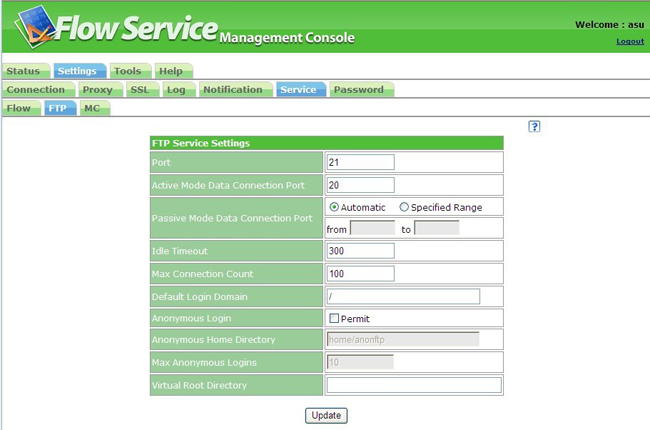
FTP service settings can be carried out in the FlowService.
If the FTP services are updated, to enable them 「FtpService」 must be restarted.
The FTP service use the authentication for the FlowService account.
|
Enter the information for each field, click “update” at the bottom and the settings will be applied.
If the FTP services are updated, to enable them 「FtpService」 must be restarted.
| Port | Enter the port number. The default is 21. |
| Active mode data connection port | Enter the active mode server data connection port number. The default is 20. |
| Passive mode data connection port |
In passive mode、enter the server data transfer waiting port.
|
| Idle time-out | Enter the time-out in seconds. The default is 300 seconds. |
| Maximum connections | Enter the maximum number of simultaneous connections. The default is 100. |
| Enter the default domain when users login. The default is「/」. | |
| Anonymous login | Anonymous: sets whether to allow logins. The default is unchecked. |
| Anonymous home directory | Anonymous: sets the home directory when logged in. The default is「home/anonftp]. If you have set the user's home directory this will be the directory when logged in. |
| Maximum anonymous logins | Enter the maximum number of anonymous logins. The default is 0. |
| Virtual root directory | You can change your home directory after login. Specify the relative path to the login in user's home directory as the virtual root directory. Here you can specify an absolute path. If not specified, it is the login user's home directory. |
Set the flow service control management console.
If you set the flow service management console, you need to restart the server to enable the setting.
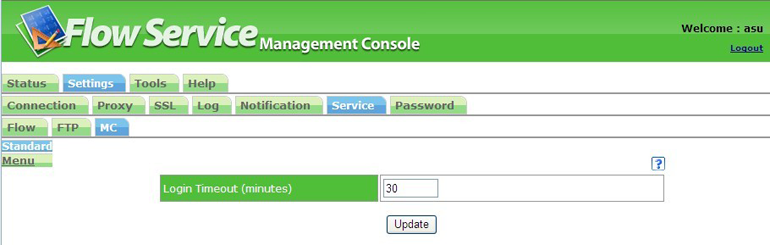 |
When you enter information in the following columns and click the ‘update’ button at the bottom screen, the setting will be reflected.
| Long Time Out (minutes) | Set the long time out (minutes) time of the flow service control management console. The default is 30 minutes. When you log on to the flow service management console, if you don’t do anything during the long time out, you will be automatically logged out. The long time out time cannot be set to unlimited. |
You can set the saved menu template as the user’s menu template on ‘Tool>>Account’ screen. By doing so, when a user whose menu template is set logs on to flow service management console, only the menu which was set to be displayed on the menu template will be displayed. ※ You cannot edit/delete the standard menu template name (default) and the contents.
Screen list of the menu template which was primarily saved will be displayed.
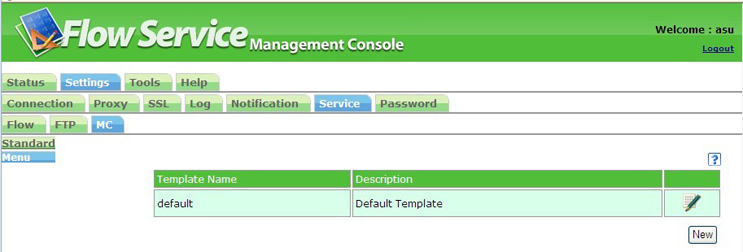 |
| Menu template name | Displays the name of the menu template. |
| Explanation | Displays the explanation of the menu template. |
| Edit icon |  Click
the icon to edit the menu template. Click
the icon to edit the menu template.
|
| Delete icon |  Click
the icon to delete the menu template. Click
the icon to delete the menu template.
|
To create a new menu template name, click ‘new’ button at the bottom of the list screen. The registry screen like below will be displayed.
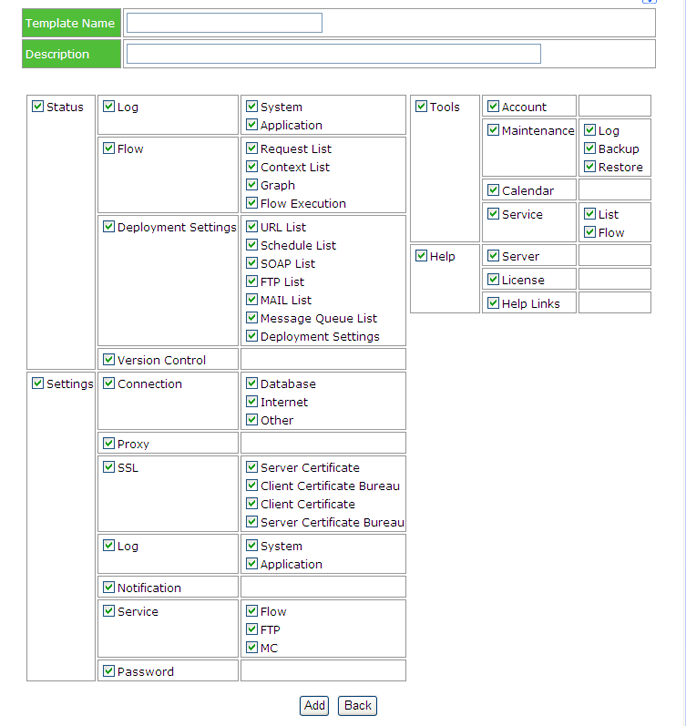 |
Here, you enter the menu template name and explanation, then in the menu list below, you set each menu’s display/non display. The menu with a check mark in a check box will be displayed and a menu without a check mark will not be displayed. When you finish setting the display/non display of menu, click the ‘update’ button.
Restarting the server is not necessary for editing the menu template.