Checkpoints
See the following sections to configure the checkpoint functionality and get started using Checkpoint components.
- Automatically Retrying and Monitoring Flows
- Configuring Checkpoints on the Server
- Using Checkpoint Components
- Monitoring and Re-Executing Flows in the FSMC
- Configuring Automatic Retries
- Recovering Requests
- Maintaining Checkpoint Data
- See Also
- Automatically retry flows on other servers if the server running the flow goes down.
Automatically Retrying and Monitoring Flows
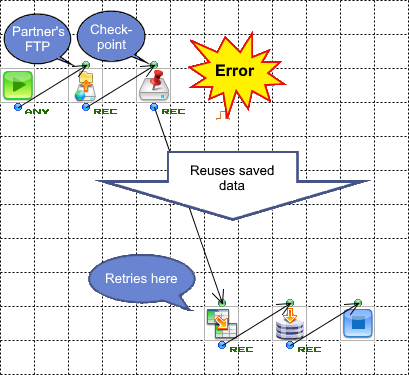
Checkpoint components save execution data and output status information. The Flow Service automatically retries the flow from the last Checkpoint if an error occurs, reusing the data that the Checkpoint has saved.
You can also monitor Checkpoints' status and manually re-execute flows in the management console and other tools like the flow-ctrl CLI, Flow Service API, and SDK.
Example: Saving Remote Data
The following flow downloads data from a partner's FTP server, saves the data with a Checkpoint component, then inserts the data to a database. If an error occurs after the Checkpoint, the flow re-executes starting from the Checkpoint and reuses the saved data:
Configuring Checkpoints on the Server
Configure the checkpoint functionality with the following settings in the management console. Switch to Failover using Checkpoints to configure the checkpoint functionality in a multiserver environment.
-
Connect to the checkpoint database: Log into the management console and go to the Settings > Connection > RDB page. Click New, select the system connection option, and specify the RDB connection properties.
-
Go to the Settings > Services > Flow page and click Edit in the Checkpoint section.
-
In the Checkpoint Connection menu, select the system connection.
-
Optionally, in the Checkpoint Storage Path box, specify a folder to save flow execution data in.
You can enter a folder name to save checkpoints on the server. Or, enter an absolute path to a network folder or another folder you have access to on the system.
-
Restart the Flow Service: Go to the Tools > Services page and select the FlowService process and click Stop, then Start.
Note
When you're allocating disk space, test how the following factors affect your system: the space required to cache a single stream, the space required for the total number of requests, and how long the data is cached.
Supported Checkpoint Databases
The following database servers are currently supported for the checkpoint database:
- Oracle
- IBM Db2
- Microsoft SQL Server
- MySQL
- PostgreSQL
Use a dedicated user account on the database server.
Using Checkpoint Components
See below to enable the checkpoint functionality for a flow, then add Checkpoint components to save execution data.
- Configuring the Start Component
- Adding Checkpoint Components
- Setting Checkpoint Status
- Saving Execution Data
- Performance Implications of Checkpoint Components
- Limitations in Advanced Flows
Configuring the Start Component
You need to set the BeginCheckpoint property to Use for the start component of any flow that uses Checkpoint components. When you enable this property, the start component automatically becomes a Checkpoint component. A start component with Begin Checkpoint set to true displays a pin icon: 
Adding Checkpoint Components
Add a Checkpoint component after any component to save its output data or to output status information: Drag and drop the  icon from the Control tab of the palette.
Example: Database Queries
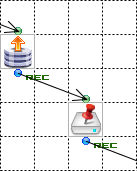
You can add a Checkpoint after an RDBGet to save the query results. If an error occurs downstream, you can re-execute the flow using the saved data.
Setting Checkpoint Status
You can set the Status property to easily see where an error is occurring. Set the Status property of a Checkpoint component to output status information.
You can access the status information in the management console or client tools like the flow-ctrl CLI.
Example
"SELECT successful" provides a useful status message for the Checkpoint component in the preceding Database Queries example. If an error occurs in the flow and this Checkpoint component was the last successful Checkpoint, you'll see "SELECT successful" on the Status > Flow > Status List page in the FSMC.
Saving Execution Data
You can add a Checkpoint component to save the following data at the specified point in the flow execution:
- A component's output stream
- Flow variables
- Request variables
- Streams saved in memory with the StreamPut component. To use a StreamPut component with a Checkpoint component, set the Scope property to "Request."
Note
To retrieve a stream saved by the StreamPut component, use the StreamGet component. The StreamGet component needs to have the same settings as the StreamPut component.
Performance Implications of Checkpoint Components
Saving and restoring execution data impacts memory and execution time. Generally, the memory use may spike up to 2x when a Checkpoint component saves the data, 3x when a Checkpoint component restores the data.
Using RDBGet components will use more memory and take longer when saving and restoring the data. Using RDBGet components with a Checkpoint component will use more memory than using an RDBGet component without a Checkpoint component. Checkpoint components read and save the entire result set for RDBGet components.
Limitations in Advanced Flows
There isn't any limit to the number of Checkpoint components you can add to a flow, but there are some limitations on using Checkpoint components in more complex flows. See below to avoid errors using Checkpoints with flow control elements and for other more advanced usage notes.
- Execution Data
- Subflows and Triggers
- Loop Processing
- Parallel Processing
- Mutex Components
- Transactions
Execution Data
Checkpoint components don't save the following data:
- Stream variables.
- Application variables. Application variables are saved in external variable sets.
- Session data, such as session variables. Checkpoint components don't save session data, but you can reuse a remaining session during a retry from the last successful Checkpoint component.
Subflows and Triggers
You can't use Checkpoint components in the following flows:
- A flow invoked by a SubFlow component
- A flow invoked by the NextFlow component
- An error processing flow
- A flow invoked by a ParallelSubFlow component
- A flow invoked by the FlowInvoker component
- A flow invoked by a Timer component
- A flow started by a mail monitor trigger
Loop Processing
You can't add a Checkpoint component inside a loop.
Parallel Processing
You can't use Checkpoint components on parallel branches. You can use a Checkpoint component after the parallel state ends.
Mutex Components
If you are using the Mutex component, you must use the Checkpoint component after the flow is unlocked.
While the flow is locked, a Checkpoint component saves execution data, but the flow is unlocked during a retry since it retries after the Checkpoint. There's a possibility that if two requests execute the same flow simultaneously, a part of a flow that should be locked will be processed simultaneously.
Transactions
You can't set both the Begin Checkpoint and Begin Transaction properties for the start component of a flow. You can't execute a flow in a single transaction if the flow uses Checkpoint components.
But, if you want to execute part of a flow as a single transaction between two Checkpoint components, make that part a subflow. Set BeginTransaction to true in the properties for the SubFlow's start component.
Monitoring and Re-Executing Flows
See the next sections to monitor flow execution, get the status during a retry, re-execute flows in the management console, and walk through the re-execution process.
Monitoring the Retry Status
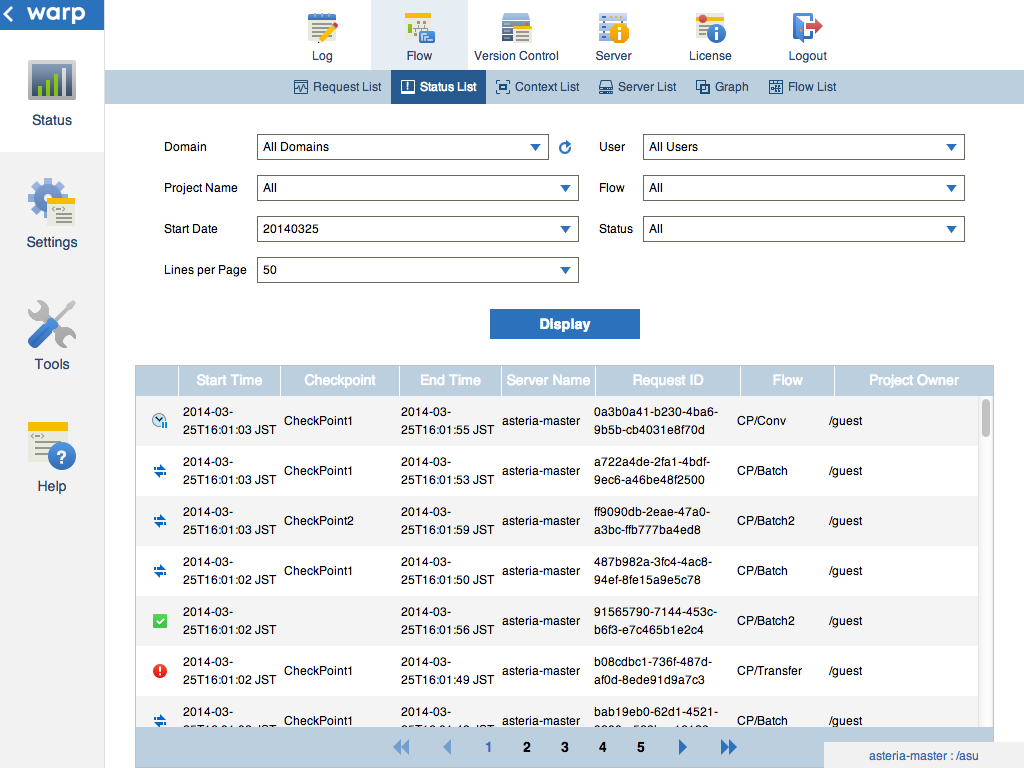
The Flow Service automatically retries requests that ended on an error. In the management console, you can monitor the retry status and re-execute flows on the Status > Flow > Status List page.
The Status List page in the management console displays the status of each request with the following icons:
| Status | Description |
|---|---|
 |
The request is waiting for a retry. |
 |
The Flow Service is preparing to execute the request. |
 |
The request is running. |
 |
The request completed successfully. |
 |
The request ended with an error. |
Re-Executing Flows
You can manually re-execute flows using the management console and other tools like the flow-ctrl CLI, Flow Service API, and SDK. In the management console, select a request and click Rerun.
You can re-execute flows with an error status (all retries have failed) or a status of waiting for a retry.
Re-executing manually while automatically retrying
If you re-execute a request whose status is waiting for a retry, the request re-executes but the retry count doesn't increment.
Changing the settings to fix failing requests
You can change a flow's settings and re-execute the request to fix errors, for example, if a component or flow processing fails with invalid data. But, you mustn't change the following settings. If you change these, the Flow Service can't retry the request.
- Change the project name.
- Change the flow name.
- Change a Checkpoint component's name when its Status property is empty.
- Change the Start Component or the CheckPoint Component's Status property.
Configuring Automatic Retries
You can specify a retry count and retry interval for an individual flow or change the system defaults.
Note
The Flow Service retries requests for only three days.
Changing the Retry Settings for a Flow
You can change the retry settings for an individual flow by setting the RetryCount and RetryInterval properties for the flow's start component. Or, leave the default setting of "System Setting" to use the Flow Service's defaults.
Changing the System-Default Retry Settings
Go to the Settings > Services > Flow page of the management console and, in the Checkpoint section, set the Checkpoint Default Retry Interval and Checkpoint Max Retry Count properties.
Configuring Automatic Retries on Another Server
Set the Other Server Retry property for a flow's start component to fail over the flow on a system error. See Configuring Failover Servers to configure the checkpoint functionality for multiple servers.
Changing the Retry Settings while Retrying Requests
The Flow Service executes retries using the retry settings that were defined when the flow was executed for the first time. If you change the Retry Count, Retry Interval, or Other Server Retry properties after the request executes, the Flow Service won't use the new settings.
Recovering Requests
The Flow Service recovers requests that have terminated abnormally, when the status is stuck at "running."
Recovery vs. retry
The Flow Service only retries requests with a status of "error" or "waiting for a retry." But, if a request terminates abnormally, the request's "running" status doesn't change, and the Flow Service won't retry these requests.
Recovery process
The Flow Service detects that a request has terminated abnormally on a restart of the Flow Service process. When the process restarts, the Flow Service resets any requests with a status of "running" to "stopped." If the next retry time hasn't already been determined yet, the Flow Service adds the retry interval to the reset time, when the status was changed.
Maintaining Checkpoint Data
You can schedule deletion for checkpoint data when you create a log deletion schedule. You can create a log deletion schedule on the Settings > Log > Purge page:
- In the Automatic Maintenance section, click Edit.
- Select one of the Purge Schedule options.
- Enable the Schedule for Checkpoints option.
- In the Checkpoint Retention Period box, enter the number of days to keep the checkpoint data. The Flow Service will purge data older than the retention period.
- Specify the times to purge.
The Flow Service will also automatically purge request data if the request has an error status.
Other maintenance tasks
Other maintenance tasks for checkpoints include performing maintenance on the checkpoint database, defragmenting, etc. Refer to the documentation for your database for best practices on your system.