Version Control
The Flow Designer and management console provide graphical version control tools. You can save snapshots while you design flows, review the revision history, and design flows collaboratively. The following sections introduce how to follow version control workflows in the Flow Service.
Setting Up Version Control
The Flow Service currently includes support for the Subversion version control system. See Setting Up Version Control for requirements, setup guides, and the basics of interacting with Subversion.
Commit, Share, and Sync Projects
The Flow Service's integrated version control enables workflows like the ones below:
- Tracking changes: As you design a flow, you can save snapshots of your projects. It's easy to review changes and experiment, since you can always roll back to a good previous version from the history.
- Coordinating changes: Teams rely on version control to prevent conflicts while collaborating on projects. In the Flow Designer, you can use graphical tools to review different versions of a flow.
- Distributing flows: You can use version control to distribute flows, for example, from a development server to a production server or to a failover server.
Version Control Workflows
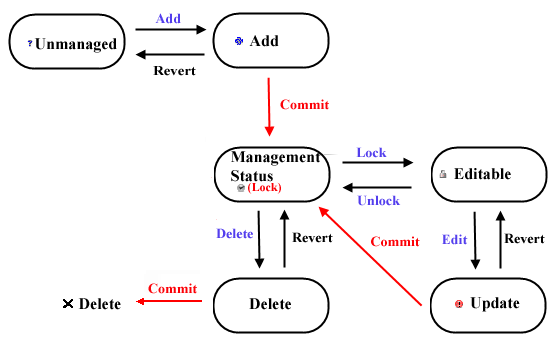
To design projects under version control, you follow a lock-edit-unlock workflow. In the Flow Designer's tree pane or file pane, you can use the version control toolbar or right-click to run the commands that make up the workflow:
- Add unmanaged files to version control.
- Lock files for editing on the server to safely modify projects, without causing conflicts or losing work by overwriting changes.
- Commit a snapshot to the repository.
- Unlock files.
- Delete a file and remove the file from version control.
- Revert your local changes.
In the diagram below, arrows show the commands. Ovals show the file status that results and the status icons that the tree pane displays.
Flow Designer Workflows
The following sections show how to follow version control workflows in the Flow Designer.
- Start with Flow Designer Workflows for a walk-through of the graphical user interface. See this section for descriptions of the icons that show the file status.
- See Version Control Workflows for guides to executing version control commands in the Flow Designer.
See below for procedures to do other version control tasks in the Flow Designer:
- See Also
-
Management console workflows
Click Help on the following pages for guides to do version control in the management console:
- Flow developers: On the Status > Version Control page, flow developers can log in and check the status of their home folder and view the revision history.
- Admins: On the Tools > Account page, administrators can synchronize a developer user's home folder to the latest revision or another revision.