Mappers
You can use a mapper component to process a stream as a set of records. You can also use mappers to get and set variables and components' properties.
- Creating a Mapping: Get started with the basic tasks of processing data with the mapper.
- Mapping XML: Process XML in the mapper.
- See Also
-
- To get started using the mapping window interface, see Designing Flows > Mappers. Here you can also find example flows.
- For the typical workflow and for more advanced tasks, such as creating multilayered mappings, see Mapper Components in the Flow Designer user's guide.
Creating a Mapping
To create a mapping, double-click the mapper component to open the mapping window. When you connect input fields, output fields, and mapper functions in the mapping area, you define how to process the current record as the mapper component iterates over the input records.
- Mapping Input Fields: Get data in the input stream, component properties, and variables.
- Mapping Output Fields: Set data in the output stream, component properties, and variables. You can also output logs and errors.
- Executing Mapper Functions: Process the fields of the record the mapper is currently iterating over -- an example using the UUID function shows how mapper functions are executed once for each iteration.
- Getting and Setting Mapper Properties: Set the mapper's properties to configure the mapper's execution parameters. For example, configure loop processing or handle errors.
Mapping Input Fields
You can map the following inputs in the input fields section of the mapping window:
Mapping Stream Data
You can map the following data fields in the Stream Data section for each stream you connect to the mapper. See the following sections for more on processing multiple streams.
Stream Fields
Get the stream fields defined for the stream you connected.
Note
Mapping no fields in record-type streams and containers: You can map variables or component properties without mapping the stream fields. If the input stream is a container or record-type stream, but you don't map any stream fields, the mapper only runs once.
Record No.
Get the 1-based index of the current record being processed.
Record Count
Get the total number of records processed.
Stream Variables
The stream variables that exist in the stream you connected.
Mapping Multiple Streams and Containers
You can connect multiple streams or a stream container to the mapper's input in the workspace. See below to walk through how the mapper processes these.
Mapping stream containers
Map stream containers like a single stream. Connect the current record's fields in the Stream Data section of the input fields.
The value of the Record Count field is the total of all the records from all the streams in the container.
For example, if the mapper is processing a stream container that consists of three CSV files that have three records, five records, and seven records, respectively, the mapper processes 15 records and the Record Count field is 15.
- See Also
- See More Topics > Streams > Combining Streams in Containers for an overview of using stream containers.
Mapping multiple streams
When you connect multiple components to the mapper's input node in the workspace, the mapper simultaneously maps the input streams. In the Stream Data section, connect the stream fields from the current row of each stream.
The value of the Record Count field is the max record count. If a stream has a record count that is less than the max, the mapper fills in null field values for the missing fields as it processes the remaining records.
Mapping Component Properties
In the mapper's input fields, you can reference the input component's properties. You can also get the following information about the component's execution:
Getting the Execution Count
Reference the component's Execute Count property. The Execute Count includes executions in a loop; nested loops don't reset the execution count.
The context of the execution count is, more specifically, between the start and end of the request processing the flow.
Getting Error Messages
When an error occurs in a component, to get the error message, you can connect a mapper component after the component, with the following conditions:
- The Exception property is set to Ignore, or
- You configure an error-processing flow: you set the component's Exception property to an error-processing flow and in the error-processing flow you set the ReturnType property to "ExceptionComponent" for the ExceptionReturn component.
You can then reference the value of the Exception String property to get the error message.
- See Also
-
See more topics for error processing to handle or ignore errors.
Mapping Variables
In addition to the stream variables, you can also reference other variables in scope in the input fields section: mapper variables, flow variables, external variable sets, and system variables.
Mapping Output Fields
In the output fields section of the mapping window, you can do the following:
Setting Output Stream Fields
To define the fields of the output stream, you can connect input fields and mapper functions to the output fields.
When you map stream fields to an output stream that has only one field, like a binary or text stream, the mapper merges the values of the fields from each of the input stream's records.
The record count of the output stream is the total number of records processed.
Setting Component Properties
You can connect a mapper before the component to set the component's properties. The component's properties are displayed in the output fields of the mapping window.
The mapper maps the component properties once in a single execution: If you link a stream field to a component property in the mapping window, the mapper sets the property to the value from the first record in the input stream.
Using Loop Processing
If you set the mapper's LoopProcess property to true, the mapper executes one time for each record, so the mapper maps stream fields, component properties, and variables for each record.
- See Also
- See the component help or Component reference to find the properties you can set using a mapper.
Setting Variables
In the output fields section, you can connect values to variables in the output stream. Note that some variables are not displayed in the output fields. These variables are read-only: system variables, constants defined in an external variable set, and read-only flow variables.
Just like component properties, the mapper component sets variables only once for a single execution of the mapper.
Note
The mapper component sets mapper variables as it processes each record.
Getting Status Information
You can map the Status field in the output fields section to output how many records have been processed to the management console or external clients.
- Management console: Go to the Status > Flow > Request List page.
- External clients: Use the flow-ctrl command's "show" or "show worker" commands.
Outputting Logs
You can write to the execution log by mapping the Log field.
By default, the fields that you map to the Log field are output to the FlowService.log file. If you set the Application Log Settings in the project or flow properties, the Log field is output to the application log.
Executing Mapper Functions
You can connect mapper functions to execute date, math, string, and other operations on fields. In the mapping window, drop a mapper function from the palette into the mapping area and connect input and output fields.
A given mapper function is executed only once for the processing of each record.
Example: Mapping a UUID
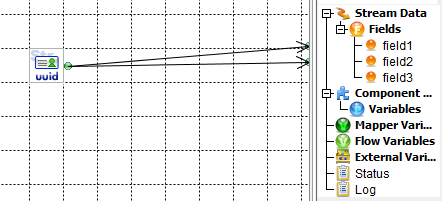
When the mapper component executes the following mapping, each record has different UUIDs, but Field1 and Field2 are the same in each record.
If the input stream in the example has 10 records, the UUID function is executed 10 times.
Getting and Setting Mapper Properties
You can set a mapper's properties to configure how the mapper processes records or handles errors. You can also reference a mapper's properties to get additional output from the mapper.
- See Also
- See the Component reference to configure error-handling with the Exception property.
Configuring Loop Processing
If you set the mapper's LoopProcess property to true, the mapper executes once for each record. The mapper will map stream fields, component properties, and variables for each record.
By default, LoopProcess is false, and the mapper processes all the stream's records in a single execution.
Configuring Stream Passthrough
You can enable the mapper component's PassThrough property to copy the input stream to the output stream, unchanged.
Handling Zero Records
Set CountZeroException to true to throw an exception if the record count is zero.
Mapping XML
Follow the steps below to create a mapping and return the results as XML:
- Processing XML Input Streams: See below to flatten hierarchical XML into records and map the fields.
- Processing XML Output Streams: Generate an example XML document from the stream's fields.
- See Also
-
- See the "More Topics" section for XML field definitions for a detailed guide to parsing XML.
Processing XML Input Streams
See below to walk through an example that shows the basic tasks of processing XML input in the mapper:
- Configuring the Input Stream: Connect an XML stream to the mapper and define the stream's fields to parse the XML.
- Defining Repeat Elements to Flatten XML: Define stream fields as repeat elements to flatten hierarchical XML into records.
- Mapping Input XML to Stream Fields: Map the fields in the mapping window to build the output XML document.
Configuring the Input Stream
To configure the mapper's input stream, configure the component that outputs the stream and then link the component to the mapper:
- Select the stream type: click the label next to the component and select XML.
- Configure the XML stream: click the component and define the stream's fields and properties in the Stream pane.
See the following section to define stream fields to parse example XML.
- See Also
-
See More Topics > Stream Definitions> XML for a guide to defining stream fields and properties for XML streams.
Defining Repeat Elements to Flatten XML
You can specify fields as repeat elements to configure how the stream parses the XML.
To create an XML stream that parses the following XML, you could define the Order and Product fields as repeat elements:
<root>
  <Order>
    <OrderNo>1111</OrderNo>
    <Product>
      <Name>Portable CD player</Name>
      <Price>1000</Price>
    </Product>
    <Product>
      <Name>Boom box</Name>
      <Price>2000</Price>
    </Product>
  </Order>
  <Order>
    <OrderNo>2222</OrderNo>
      <Product>
        <Name>Video camera</Name>
        <Price>3000</Price>
      </Product>
      <Product>
        <Name>Digital camera</Name>
        <Price>4000</Price>
      </Product>
      <Product>
        <Name>Scanner</Name>
        <Price>5000</Price>
      </Product>
  </Order>
</root>
Below is the corresponding record set.
1111,Portable CD player,1000
1111,Boom box,2000
2222,Video camera,3000
2222,Digital camera,4000
2222,Scanner,5000
Note
Note that the number of records is 5: the first Order element has two children and the second Order element has three children.
Mapping Input XML to Stream Fields
The mapper only processes the fields that you map. In the preceding example, if you only map the OrderNo field, the XML that is processed becomes
<root>
  <Order>
    <OrderNo>1111</OrderNo>
  </Order>
  <Order>
    <OrderNo>2222</OrderNo>
  </Order>
</root>
and the XML stream contains the following two records:
1111
2222
To process the original XML structure, you need to map all of the stream's fields. If you want to process all of the records but only map a few fields, you need to invent a way to map the other stream fields: in the mapping window, you can map the stream fields in the input fields section to dummy flow variables in the output fields section.
In the example, if you wanted to process all five records but map only the OrderNo field, you would need to map the elements under the Product element to dummy flow variables.
Note
In the mapping window, define flow variables in the Variables pane on the right (next to the Stream pane).
Processing XML Output Streams
See below to walk through configuring the mapper to output XML.
- Configuring the Output Stream: Configure the mapper to output an XML stream.
- Mapping Stream Fields to Output XML: Define the stream's fields to map records to XML.
- Defining Repeat Elements to Output XML: Get started defining repeat elements to output XML.
- Processing Repeat Elements: Work with nested repeat elements.
- Using the Flow-Service-Specific Namespace: Output duplicate fields at the same level using a special void namespace.
Configuring the Output Stream
To configure the mapper's output stream, click the label next to the mapper in the main workspace and select XML. You can then create the stream definition: click the mapper in the workspace and, in the Stream pane, define the stream fields under a document element.
- See Also
- See More Topics > Stream Definitions> XML for guides to setting stream properties and specifying the XML structure.
Mapping Stream Fields to Output XML
You specify the structure of the mapper's output XML by defining the fields of the stream. The values that you map also define the structure of the output XML. To output the values, the mapper does the following:
- Outputs XML nodes only if you map the corresponding field.
- Outputs a node only if the field is not null.
Building the XML Structure
You define the structure of the output XML by defining fields and mapping values. See below to walk through the details of how the mapper builds the XML structure. You can follow this guide when mapping complex XML.
The mapper iterates over the stream's records and does the following to build the XML:
- Maps a record to a new repeat element, skips outputting a duplicate repeat element, or updates an existing repeat element.
- Overwrites a field if a repeat parent does not exist.
Defining Repeat Elements to Output XML
See below for example stream definitions and the output XML.
Consider again the XML stream from the "Processing XML Input Streams" section. You'll convert the elements to attributes. The following stream definitions convert the elements to attributes under the repeat elements.
Stream Definition A
Stream A defines the Order and Product elements as the repeat elements.
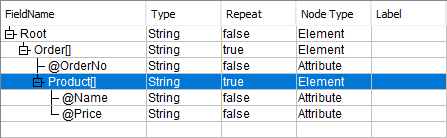
Output XML for Stream A
<root>
  <Order OrderNo="1111">
    <Product Name="Portable CD player" Price="1000" />
    <Product Name="Boom box" Price="2000" />
  </Order>
  <Order OrderNo="2222">
    <Product Name="Video camera" Price="3000" />
    <Product Name="Digital camera" Price="4000" />
    <Product Name="Scanner" Price="5000" />
  </Order>
</root>
Stream Definition B
Stream B defines the Order element as the repeat element.
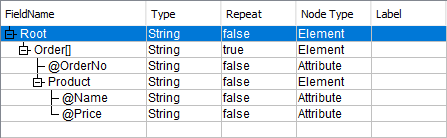
Output XML for Stream B
<root>
  <Order OrderNo="1111">
    <Product Name="Portable CD player" Price="1000" />
  </Order>
  <Order OrderNo="1111">
    <Product Name="Boom box" Price="2000" />
  </Order>
  <Order OrderNo="2222">
    <Product Name="Video camera" Price="3000" />
  </Order>
  <Order OrderNo="2222">
    <Product Name="Digital camera" Price="4000" />
  </Order>
  <Order OrderNo="2222">
    <Product Product="" name="Scanner" Price="5000" />
  </Order>
</root>
Processing Repeat Elements
See below for how the mapper processes the first record of the example streams A and B, above.
Both streams map the first record in the same way. After the first record is mapped, the output XML is the following:
<root>
  <Order OrderNo="1111">
    <Product Name="Portable CD player" Price="1000" />
  </Order>
</root>
See below to add the second record, whose fields are shown below as CSV:
OrderNo,Name,Price
1111,Boom box,2000
Processing Stream A
The mapper follows the steps below to generate the XML using stream definition A:
- Searches for an existing repeatable element that has the name Order.
- Matches the Order element that contains the nonrepeatable component that has the name OrderNo, that has the same value, and that already exists -- matches the OrderNo field that has the value "1111". At this point, the mapper has determined the target Order element: it won't create a new Order element.
- Searches inside the target Order element for an existing child repeatable element that has the name Product.
- Creates a new Product element, since the search doesn't match a Product that has the same Name and Price nonrepeatable components.
The first two records:
<root>
  <Order OrderNo="1111">
    <Product Name="Portable CD player" Price="1000" />
    <Product Name="Boom box" Price="2000" />
  </Order>
</root>
Processing Stream B
The mapper follows the steps below to generate the XML using stream definition B:
- Searches for an existing repeatable element that has the name Order.
- Matches an existing Order element that contains the nonrepeatable components that have the names OrderNo, Product/Name, and Product/Price.
- There isn't a matching Order element, so the mapper creates a new Order element.
- Inserts a new Order element, creating at the same time a new Product child element.
The first two records:
<root>
  <Order OrderNo="1111">
    <Product Name="Portable CD player" Price="1000" />
  </Order>
  <Order OrderNo="1111">
    <Product Name="Boom box" Price="2000" />
  </Order>
</root>
Using the Flow-Service-Specific Namespace
You can define fields that use a special namespace to map values to attributes that are hidden from the resulting XML. The mapper omits the same elements as described above. You can avoid it by using Flow-Service-specific attributes.
Defining Hidden Fields
To define the void namespace, set the stream's Namespace property in the Stream pane. Add the following namespace: http://www.infoteria.com/asteria/mapper/void. You can use the prefix x. Append the prefix to the field name.
See below for an example of outputting identical fields.
Input CSV
See below to map the following CSV, which repeats the same value for 5 records.
11111
11111
11111
11111
11111
Field Definition 1
You can map the example CSV to XML with the following field definition:
Root        Element
    Field1  Element (Repeat=True)
Output XML 1
Below is the output XML. As described above, the mapper skips the duplicates:
<Root>
  <Field1>11111</Field1>
</Root>
Field Definition 2
Add a record-number attribute to make the fields unique:
Root            Element
  Field1        Element (Repeat=True)
    recNo       Attribute
In the mapping window, map the CSV input field to the Field1 output field and map the RecordNo input field to the recNo output field.
Output XML 2
Below is the output XML. The mapper doesn't skip the duplicates because the recNo is different.
<Root>
  <Field1 recNo="0">11111</Field1>
  <Field1 recNo="1">11111</Field1>
  <Field1 recNo="2">11111</Field1>
  <Field1 recNo="3">11111</Field1>
  <Field1 recNo="4">11111</Field1>
</Root>
Field Definition 3
Define the special namespace: In the Stream pane, click the Namespace field and enter Prefix x and URI "http://www.infoteria.com/asteria/mapper/void". Change the recNo attribute to "x:recNo".
Root            Element
  Field1        Element (Repeat=True)
    x:recNo     Attribute
Output XML 3
Below is the output XML. The mapper processes the mapping in the same way as output XML 2 but ignores the recNo.
<Root>
  <Field1>11111</Field1>
  <Field1>11111</Field1>
  <Field1>11111</Field1>
  <Field1>11111</Field1>
  <Field1>11111</Field1>
</Root>